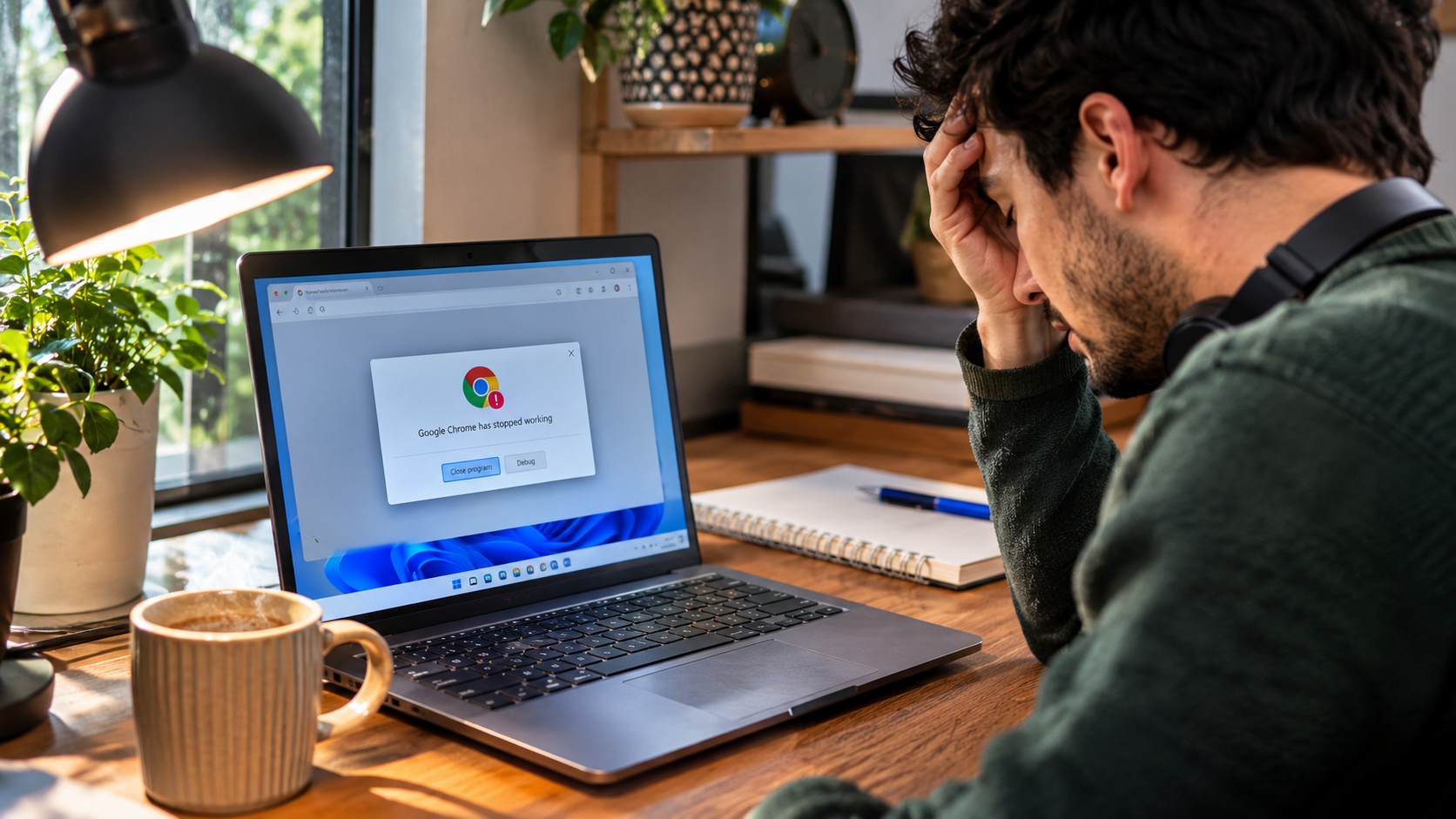
Few things derail your workflow faster than Google Chrome closing without warning, locking up with a gray “Not Responding” title bar, or throwing an “Aw, Snap!” error on Windows 11. Whether Chrome shuts down the second you click its icon or freezes mid-scroll while Microsoft Edge works fine, you do not need to reinstall Windows to fix it.
Most Chrome crashes on Windows 11 come down to four culprits: a GPU rendering conflict (especially after recent Windows 11 updates), a corrupted local user profile, a rogue browser extension, or Windows Efficiency Mode throttling. Work through the 12 fixes below in order—starting with 60-second tweaks before touching drivers or system files.
30-Second TL;DR Fix: If Chrome opens long enough to click settings, go to chrome://settings/system and toggle off. Use graphics acceleration when available, then click Relaunch. If Chrome crashes immediately on startup, close all Chrome.exe processes in Task Manager (Ctrl + Shift + Esc) and rename your Default profile folder inside %LOCALAPPDATA%\Google\Chrome\User Data to Default.old.
Quick Diagnosis: Match Your Crash Type to the Exact Fix
Before changing random settings, match what Chrome is doing on your PC to the fix that targets it directly:
| What Chrome Is Doing | Most Likely Cause | Jump to Fix |
| Won’t open or close within 1–2 seconds | Hung background process, corrupt profile, or GPU crash at launch | Fix 1, Fix 2, & Fix 7 |
| Freezes / gray screen while scrolling or playing video | Hardware acceleration conflict, corrupt shader cache, or Windows 11 MPO bug | Fix 2, Fix 3, & Fix 6 |
| Freezes for 10–30 seconds, then unfreezes | Windows 11 Efficiency Mode throttling or Windows Defender I/O scan | Fix 4 & Fix 9 |
| “Aw, Snap!” (STATUS_ACCESS_VIOLATION / Out of Memory) | Broken extension, low virtual memory, or faulty RAM | Fix 8, Fix 11, & Fix 12 |
Part 1: Instant Fixes (Takes Under 2 Minutes)
Start here. These three steps resolve the majority of sudden Chrome crashes without altering your Windows system settings.
- Kill Hung chrome.exe Background Processes
Sometimes Chrome appears closed, yet a frozen background process prevents a new window from launching cleanly—causing instant crashes every time you click the icon.
- Press Ctrl + Shift + Esc to open Windows Task Manager.
- Click the Details tab in the left sidebar (or look under Background processes in the Processes tab).
- Find every entry named chrome.exe, right-click it, and select End task (or End process tree).
- Reopen Google Chrome and check if it stays open.
- Disable Hardware Acceleration (Even If Chrome Won’t Stay Open)
Chrome offloads page and video rendering to your graphics card (GPU). When a Windows 11 update clashes with your GPU driver, Chrome deadlocks and crashes.
If Chrome stays open long enough to reach Settings:
- Open Chrome and type chrome://settings/system in the address bar.
- Toggle off Use graphics acceleration when available.
- Click Relaunch to restart Chrome.
If Chrome crashes immediately upon opening:
- Right-click your Google Chrome shortcut on the desktop (or Start menu > Open file location) and select Properties.
- In the Target field, click at the very end after the closing quotation mark (“”), press the Spacebar once, and type “–disable-gpu.”
- Example: “C:\Program Files\Google\Chrome\Application\chrome.exe” –disable-gpu
- Click Apply > OK, then launch Chrome from that shortcut. Once open, disable graphics acceleration inside chrome://settings/system and remove –disable-gpu from the shortcut.
- Clear GPU/Shader Caches & Browsing Data
Clear GPUCache, ShaderCache, and Code Cache inside %LOCALAPPDATA%\Google\Chrome\User Data (or press Ctrl + Shift + Delete in Chrome for cached images/files) to resolve shader or temporary data corruption.
Part 2: Windows 11 System & Driver Fixes
If issues persist, address Windows 11 hardware and OS interactions.
- Turn Off Efficiency Mode
Disable Efficiency mode for chrome.exe processes in Task Manager (Ctrl + Shift + Esc) and set your Windows Power Mode to Balanced or Best performance to prevent background throttling.
- Clean-Install GPU Drivers
Download updated display drivers directly from NVIDIA (://nvidia.com), AMD (://amd.com), or Intel (intel.com), performing a clean/factory installation to resolve update clashes.
- Apply the DWM/MPO Registry Fix
For Windows 11 24H2+ Multiplane Overlay issues, open regedit to HKEY_LOCAL_MACHINE\SYSTEM\CurrentControlSet\Control\GraphicsDrivers, create a 32-bit DWORD named OverlayMinFPS, and set its value to 0.
Part 3: Profile, Extension & Security Fixes
- Refresh Your User Profile
Close Chrome, navigate to %LOCALAPPDATA%\Google\Chrome\User Data, and rename the Default folder to Default.old to force a clean configuration.
- Isolate Rogue Extensions
Test Chrome in an Incognito window (Ctrl + Shift + N) or use the “split-in-half” method under chrome://extensions to pinpoint problematic add-ons.
- Exclude Chrome Data from Windows Defender
Add %LOCALAPPDATA%\Google\Chrome\User Data to your Windows Security exclusions list to stop real-time scans from locking active cache files.
- Scan for Malware & Shield Conflicts
Run a Microsoft Defender offline scan or temporarily pause third-party antivirus HTTPS web shields to rule out injected DLL interference.
Part 4: Hardware & Deep Repair Fixes
- Increase Virtual Memory & Memory Saver
Enable Memory Saver in chrome://settings/performance and expand your Windows C: drive page file (e.g., 4096–12288 MB) under advanced system settings.
- Test RAM & Clean Reinstall
Run mdsched.exe for memory diagnostics, or completely uninstall Chrome and wipe %LOCALAPPDATA%\Google\Chrome before reinstalling fresh.
What NOT to Do When Chrome Keeps Crashing
- Never run Chrome permanently with –no-sandbox: Disables vital core security barriers.
- Skip third-party “PC Cleaner” or “Driver Updater” tools: Often introduce adware and further instability.
- Do not reinstall Chrome before renaming your profile folder: Reuses the corrupted default directory.
Frequently Asked Questions
- Why does Chrome close immediately on Windows 11? Hung background processes, corrupted Default profiles, or GPU acceleration failures at startup—resolved by ending chrome.exe tasks or renaming the profile folder.
- What does STATUS_ACCESS_VIOLATION mean? Memory read/write protection faults caused by outdated builds, bad extensions, unstable overclocks, or failing RAM.
- Why does Chrome freeze when Edge works? Independent engine configurations, separate extension/cache structures, and aggressive Windows 11 Efficiency Mode targeting.
- How do I recover bookmarks if Chrome won’t open? Copy the Bookmarks file from %LOCALAPPDATA%\Google\Chrome\User Data\Default.old into your new Default folder while Chrome is closed.