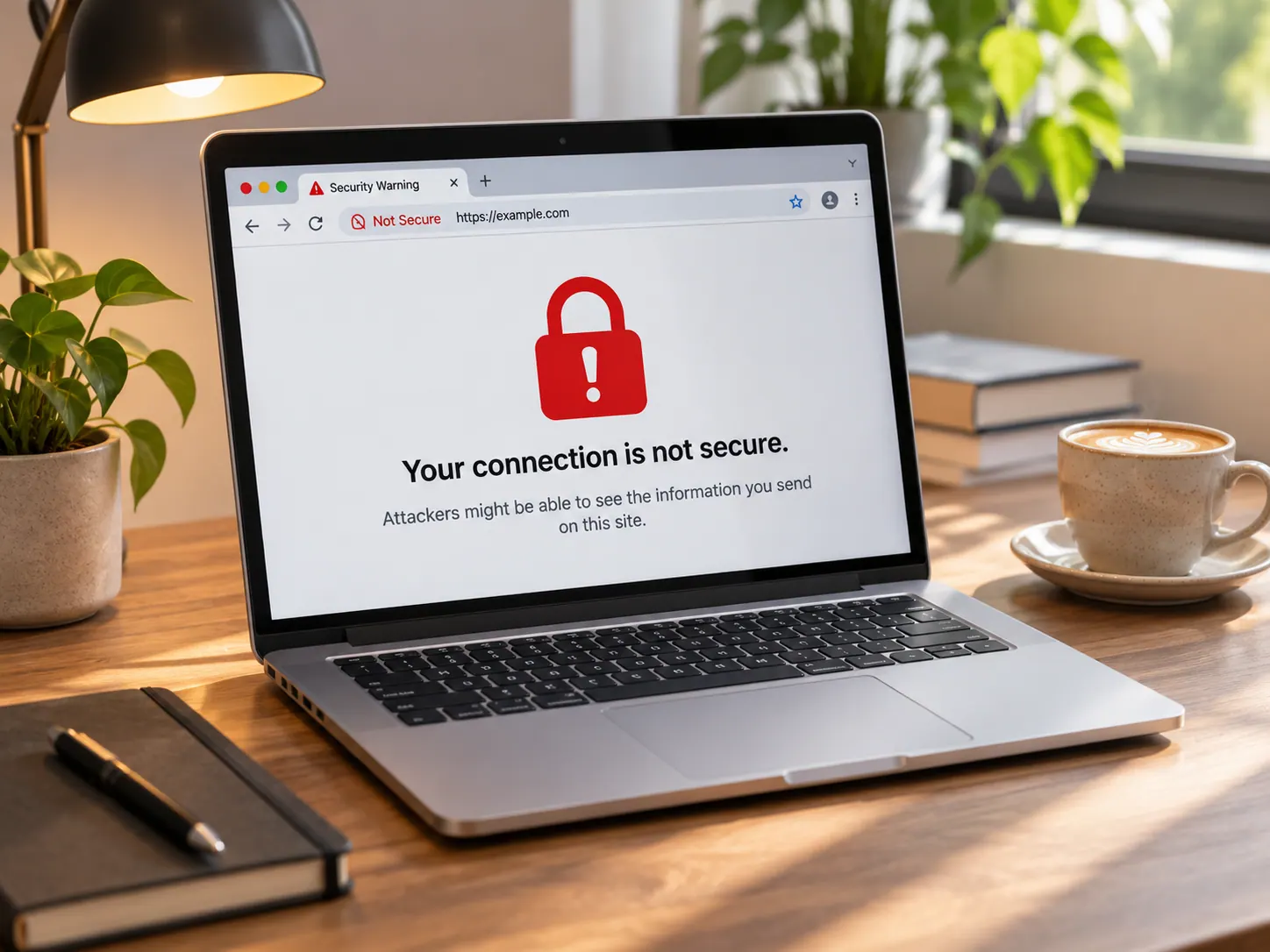
Most of the time, this error does not mean hackers are intercepting your traffic. It usually means Chrome cannot verify a website’s SSL security certificate due to a local clock mismatch, stuck cache file, or aggressive antivirus scan. Here is the exact step-by-step sequence I use on Windows 11, macOS, and Android to clear it in under five minutes.
Last Tuesday morning, I tried opening my own WordPress dashboard on Chrome and hit a full-screen red warning: “Your connection is not private” (NET::ERR_CERT_DATE_INVALID). I wasted 20 minutes restarting my Wi-Fi router before realizing my laptop’s system clock had drifted behind by two days after a battery drain.
Quick Checklist Before You Change Any Settings
- Google Chrome updated to the latest version (check chrome://settings/help)
- Your device’s system date and time settings (Windows, Mac, or phone)
- Exact error code shown in small gray text beneath the warning (e.g., ERR_CERT_AUTHORITY_INVALID or ERR_CERT_COMMON_NAME_INVALID)
- Access to a secondary network (such as a 5G mobile hotspot) for a quick 15-second isolation test
Step 1: Read the Exact Error Code Under the Warning
Before clicking any settings, look two lines below the big “Your connection is not private” headline. Chrome prints a specific capital-letter code that tells you exactly where the break happened:
- NET::ERR_CERT_DATE_INVALID: Your computer or phone clock is wrong, or the website owner forgot to renew their SSL certificate.
- NET::ERR_CERT_AUTHORITY_INVALID: A local antivirus program, office firewall, or hotel Wi-Fi login page is intercepting the connection.
- NET::ERR_CERT_COMMON_NAME_INVALID: You typed www. on a site that only registered a non-www certificate, or the site’s DNS is misconfigured.
Step 2: Check and Sync Your System Date and Time
Chrome checks every website’s SSL expiration date against your device’s internal clock. If your laptop battery died completely or dual-booted between Windows and Linux, your clock can slip out of sync and break every HTTPS site at once.
On Windows 11
- Right-click the clock in the bottom-right corner of your taskbar and click Adjust date and time.
- Toggle Set time automatically to On.
- Scroll down and click the Sync now button under Additional settings.
- Return to Chrome and press Ctrl + Shift + R to force-reload the tab.
On macOS
- Open System Settings > General > Date & Time.
- Turn Set time and date automatically to On.
- Refresh your Chrome tab using Cmd + Shift + R.
Step 3: Test the Site in an Incognito Window and Switch Networks
If your clock is accurate, you need to know within 30 seconds whether the problem lives inside your browser profile or on your Wi-Fi network.
- Press Ctrl + Shift + N (Windows) or Cmd + Shift + N (Mac) to open a fresh Incognito window.
- Paste the exact URL into the address bar and hit Enter.
- If the page loads normally in Incognito, a corrupted browser cache or rogue Chrome extension is blocking your main profile.
- If the warning still appears in Incognito, disconnect from your Wi-Fi and connect your laptop to your phone’s mobile hotspot for 15 seconds. If the site opens on mobile data, your router or ISP DNS is intercepting the request.
Step 4: Clear Chrome’s SSL State and Cached Site Data
Chrome stores old SSL certificates in memory so websites load faster on repeat visits. When a website renews its certificate, Chrome sometimes clings to the expired version until you flush it manually.
- Click the padlock or “Not secure” icon on the left side of Chrome’s address bar.
- Select Cookies and site data > Manage on-device site data, then click the trash icon next to the broken domain.
- On Windows, press Win + R, type inetcpl.cpl, and press Enter to open Internet Properties.
- Switch to the Content tab and click the Clear SSL state button (you will see a small popup confirming the SSL cache was cleared).
- Restart Chrome completely and reload the website.
Step 5: Switch Your DNS to Cloudflare (1.1.1.1) or Google (8.8.8.8)
Sometimes your local Internet Service Provider’s DNS server points your browser to an outdated server IP that lacks a valid SSL certificate. Switching to a clean public DNS resolves this in 60 seconds.
- Open Chrome and go to Settings > Privacy and security > Security.
- Scroll down to Advanced and turn on Use secure DNS.
- Select With from the dropdown menu and pick Cloudflare (1.1.1.1) or Google (Public DNS).
- Close and reopen Chrome to test the page again.
What Goes Wrong in Real Life (And How to Fix It)
Scenario 1: You Are on Café, Airport, or Hotel Wi-Fi
You connect to free public Wi-Fi, open Chrome, and suddenly every single website—including Google and Wikipedia—throws “Your connection is not private”. Public routers try to redirect your browser to their captive login portal, and Chrome blocks that redirect because it looks like a man-in-the-middle attack.
- The fix: Open a new tab and type http://neverssl.com or http://apple.com (using plain http://, not https://). Because these pages do not force SSL encryption, the hotel or café Wi-Fi sign-in screen pops up immediately so you can accept their terms and get online.
Scenario 2: Antivirus “HTTPS Scanning” Breaks Every Secure Site
You recently installed or updated Avast, AVG, Bitdefender, or Kaspersky, and now random HTTPS websites fail with NET::ERR_CERT_AUTHORITY_INVALID. Many third-party antivirus suites inject their own root certificate to scan encrypted web traffic, which Chrome flags as untrusted after a browser update.
- The fix: Open your antivirus dashboard, go to Protection > Web Shield (or Encrypted Web Scan), and temporarily toggle Enable HTTPS Scanning off for 5 minutes. Reload Chrome—if the error vanishes, update your antivirus definitions or leave HTTPS scanning disabled while keeping standard real-time file protection active.
Common Mistakes I Made (And How to Avoid Them)
- Clicking “Proceed to site (unsafe)” on login or banking pages: Chrome hides this bypass link under the Advanced button for a reason. Never bypass an SSL warning on a page where you enter passwords, credit cards, or admin logins—only use it on a local home router dashboard (192.168.1.1).
- Clearing all browsing history and saved passwords from “All time”: You do not need to wipe your entire Chrome profile and log yourself out of 40 websites. Clear only the specific site’s cookies and Windows’ SSL state first.
- Forgetting an active VPN split-tunnel rule: If your VPN switched servers mid-session or blocked a local domain, toggle the VPN off for 10 seconds to test whether the tunnel is causing the certificate mismatch.
- Typing https:// manually on an old local device: Older printers, security cameras, and local development servers only run over http://. Check the address bar to make sure Chrome did not auto-upgrade an http:// local IP to https://.
Frequently Asked Questions
Does “Your connection is not private” mean my computer has a virus?
No, in over 90% of cases, it is simply a wrong system clock, a public Wi-Fi login screen, or an expired website SSL certificate. However, if every site fails even on a clean mobile hotspot, check your Chrome extensions and antivirus HTTPS settings.
Why does a website work on my phone but show a privacy error on my laptop?
When a site loads fine on your phone’s cellular connection but fails on your laptop, the problem is isolated to your laptop or home Wi-Fi. Sync your laptop’s clock, clear the SSL state, or switch Chrome’s Secure DNS setting to Cloudflare 1.1.1.1.
How long does it take for a website owner’s new SSL certificate to work in Chrome?
Once a site owner installs or renews an SSL certificate on their server, it usually starts working worldwide within 5 to 15 minutes. If you still see the warning after 20 minutes, open the site in a Chrome Incognito window to bypass your cached error screen.
Is it ever safe to bypass the Chrome privacy warning?
The only safe time to click Advanced > Proceed (unsafe) is when you are accessing your own local Wi-Fi router admin page (192.168.0.1 or 192.168.1.1) or a local home NAS server that uses a self-signed certificate. Never bypass it on public websites.