
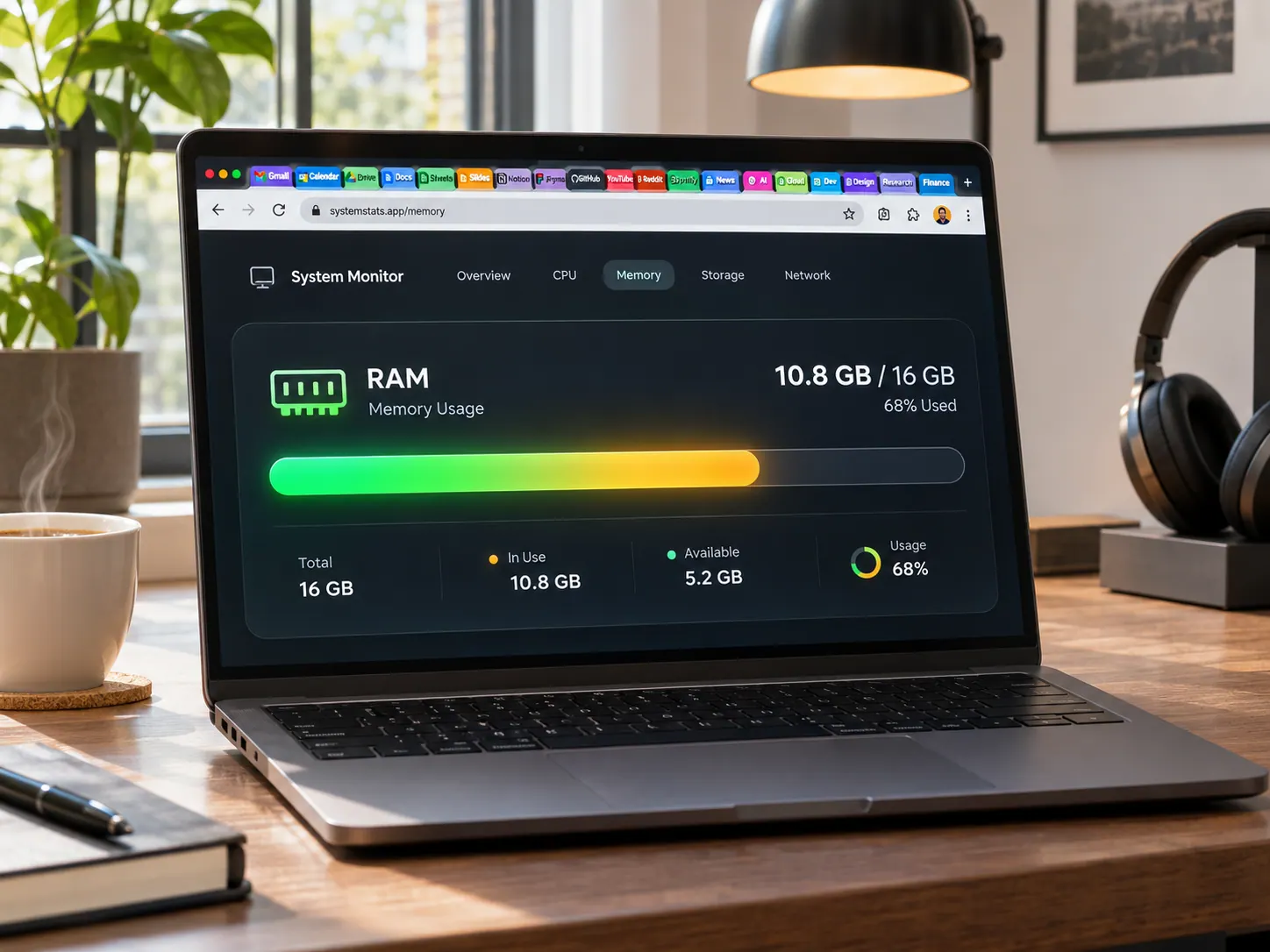
After auditing each tab and extension with Chrome’s built-in Task Manager, I trimmed that footprint down to 2.9 GB without closing my daily work tabs. Here is why Chrome grabs so much memory in the first place, plus the five exact settings that cut its RAM usage in half.
Last month, my 16GB Windows 11 laptop started sounding like a jet engine while I only had 14 Chrome tabs open. When I checked Task Manager, Chrome was eating 6.8 GB of RAM across 34 separate background processes—leaving barely enough memory for my text editor.
Quick Checklist Before You Tweak Chrome
- Google Chrome updated to the latest desktop build (chrome://settings/help)
- Chrome’s built-in Task Manager (press Shift + Esc on Windows or Window > Task Manager on Mac)
- 5 minutes to audit inactive tabs, background extensions, and preload rules
- Your core daily websites (like Gmail, Docs, or WhatsApp Web) ready to whitelist so they never sleep mid-work
Why Chrome Uses So Much Memory (The Short Answer)
Chrome isolates every single open tab, iframe, and browser extension inside its own sandboxed operating-system process. If one heavy video page crashes, it cannot take down your banking tab or Google Doc with it.
That security isolation comes at a steep memory cost:
- Duplicate rendering engines: Opening 15 tabs runs 15 mini-browsers at once, each holding its own JavaScript engine and page assets in RAM.
- Always-on extensions: Every extension injects scripts into every webpage you load, even when you never click its toolbar icon.
- Aggressive page preloading: Chrome quietly downloads and renders links it thinks you might click next before your mouse even hovers over them.
Step 1: Turn On Chrome’s Memory Saver (Maximum Mode)
Chrome includes a native Memory Saver feature that freezes inactive tabs and hands their RAM back to your computer. By default, it either stays off or waits too long before putting heavy tabs to sleep.
- Open Chrome, click the three-dot menu in the top-right corner, and choose Settings.
- Click Performance in the left sidebar.
- Toggle Memory Saver to On.
- Select Maximum (instead of Moderate or Balanced) so inactive tabs release RAM as soon as you switch away from them.
- Click Add next to “Always keep these sites active” and enter domains you never want refreshed, such as ://google.com or ://whatsapp.com.
Step 2: Hunt Down Memory-Hogging Extensions With Shift + Esc
During my laptop test, two innocent-looking extensions—a coupon finder and an unused screen recorder—were quietly burning 950 MB of RAM combined in the background. You can spot exact offenders in 10 seconds.
- While inside Chrome, press Shift + Esc (Windows) or click Window > Task Manager in the top menu bar (Mac).
- Click the Memory footprint column header to sort processes from highest to lowest.
- Look for rows starting with Extension: that sit above 100,000 K (100 MB).
- Open chrome://extensions in a new tab, toggle off any extension you use less than once a week, and click Remove on anything you forgot you installed.
Step 3: Turn Off Background Apps After Chrome Closes
Even when you click the red X to close Chrome, background extensions and web apps keep running silently in your system tray, eating 400 MB to 800 MB of RAM all day.
- Open Settings > System in Chrome’s left sidebar.
- Toggle Continue running background apps when Google Chrome is closed to Off.
- If your laptop fans spin loudly during 4K YouTube playback, keep Use graphics acceleration when available toggled On so your GPU handles video decoding instead of clogging system RAM and CPU.
Step 4: Stop Chrome From Preloading Pages You Never Visit
Chrome’s “Preload pages” feature speeds up browsing on 32GB desktop workstations, but on 8GB or 16GB laptops it fills your RAM with hidden background tabs.
- Go to Settings > Performance (or Privacy and security > Cookies and other site data).
- Scroll down to the Speed section and toggle Preload pages to Off (or switch from Extended preloading to Standard preloading).
- Watch your Task Manager: within two minutes, Chrome drops 4 to 6 hidden “Subframe” and “Spare Renderer” processes.
Step 5: Enable Hover Memory Preview and Close Abandoned Windows
You do not need to guess which open tab is slowing down your laptop. Turning on live tab memory readouts makes heavy tabs impossible to ignore.
- Go to Settings > Appearance.
- Toggle Show memory usage on hover to On.
- Hover your cursor over any open tab—a small card displays exact usage (for example, Memory usage: 412 MB).
- Press Ctrl + Shift + A (Windows) or Cmd + Shift + A (Mac) to open Tab Search, where you can see all open and recently closed tabs across hidden windows in one scrollable list.
What Goes Wrong in Real Life (And How to Fix It)
Scenario 1: Your Unsaved Form or Web App Wipes When You Click Back to the Tab
You turn Memory Saver up to Maximum, switch to another tab for 20 minutes to answer an email, and when you click back, the page reloads from scratch and wipes a half-written comment or upload.
- The fix: Add that specific website to your exception list under Settings > Performance > Always keep these sites active. Chrome will freeze news articles, shopping tabs, and documentation while leaving your active work tools untouched in RAM.
Scenario 2: One Single Tab Eats 2.5 GB of RAM and Freezes Your Mouse
You have only four tabs open, yet your laptop stutters, the cursor lags, and the cooling fan blasts hot air. Usually, an infinite JavaScript loop, a crypto-mining ad script, or a runaway web game is leaking memory inside one specific tab.
- The fix: Press Shift + Esc to open Chrome’s Task Manager, click the single tab row using over 1,500,000 K (1.5 GB), and click End process in the bottom-right corner. That single tab displays Chrome’s “Aw, Snap!” screen while your other tabs stay open and your laptop cools down immediately.
Common Mistakes I Made (And How to Avoid Them)
- Installing third-party “tab suspender” extensions: Old extensions like The Great Suspender or random RAM boosters add their own background process—and some have been caught injecting tracking code. Stick to Chrome’s built-in Memory Saver instead.
- Installing “RAM cleaner” apps on Windows: Utilities that promise to “flush RAM with one click” force Windows to dump useful file caches to your SSD, making apps launch slower for the next 10 minutes. Fix Chrome’s settings directly rather than running cleaner tools.
- Keeping 60 tabs open as a “to-do list”: Open tabs hold live scripts and timers in memory; bookmarks use zero bytes of RAM. Press Ctrl + Shift + D (Windows) or Cmd + Shift + D (Mac) to save all open tabs into a dated bookmark folder, then close the window.
- Never restarting Chrome for weeks: Leaving the same Chrome session running through sleep/wake cycles for 15 days straight lets small memory leaks pile up. Type chrome://restart in the address bar once every few days—it restarts the browser cleanly and restores all your open tabs automatically.
Frequently Asked Questions
Is high RAM usage in Chrome actually bad for my computer?
Not by itself—unused RAM is wasted RAM, and Windows or macOS automatically frees memory when another app needs it. High Chrome RAM usage only becomes a problem when total memory hits 85% to 95%, forcing your laptop to swap data onto your slower SSD and causing freezes.
How much RAM does Chrome need to run smoothly?
For light browsing with 5 to 10 tabs, 8 GB of system RAM works fine once Memory Saver is enabled. If you regularly run 20+ tabs alongside Google Meet, Slack, or Excel, 16 GB of RAM is the comfortable sweet spot.
Does clearing cache and cookies reduce Chrome’s RAM usage?
Clearing cache frees up hard drive (SSD) storage, not active RAM. However, closing unused tabs, disabling heavy extensions, and turning off Preload pages directly reduces live RAM consumption.
What is the fastest way to restart Chrome without losing my open tabs?
Click Chrome’s address bar, type chrome://restart, and press Enter. Chrome immediately closes every background process, clears leaked memory, and reopens all your windows and tabs right where you left off.