After testing the exact same page in Edge, an Incognito window, and DevTools, I found the culprit: a strict third-party cookie block combined with a hung GPU hardware decoder. Here is the exact five-step diagnostic sequence I use to get blank iframes, embedded players, and interactive web apps loading again in both Chrome and Edge.
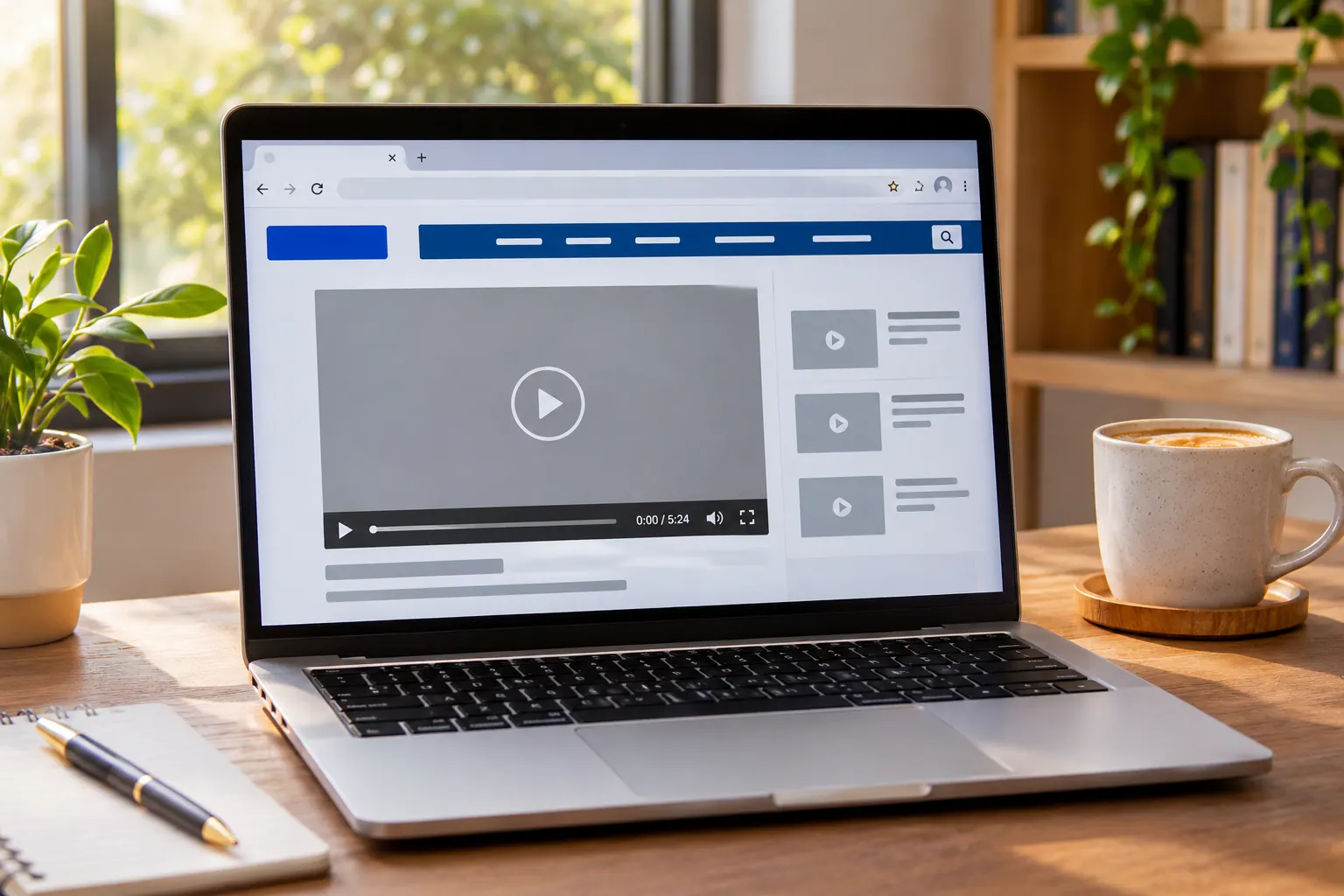
Last week, I opened a course portal in Chrome and stared at a blank gray rectangle where the embedded video player should have been. The surrounding article text loaded in under two seconds, yet the interactive frame stayed completely dead across three refreshes.
Quick Checklist Before You Start
- Google Chrome or Microsoft Edge updated to the current desktop version
- 5 minutes to isolate extensions, third-party cookies, and hardware acceleration
- Keyboard shortcuts ready: Ctrl + Shift + N (Chrome Incognito), Ctrl + Shift + P (Edge InPrivate), and F12 (DevTools)
- Access to one backup network (such as a mobile phone hotspot) to rule out router or ISP blocks
Step 1: Run a 20-Second Private Window Test
When an embedded video, map, or interactive tool shows a white or gray box, your first job is figuring out whether an extension is blocking the iframe domain. Private windows automatically disable almost all extensions and ignore your regular profile cookies.
- Open a private window: press Ctrl + Shift + N in Chrome or Ctrl + Shift + P in Edge (use Cmd instead of Ctrl on Mac).
- Paste the exact page URL into the address bar and wait 10 seconds.
- If the embedded player or web app loads normally inside the private window, an ad blocker, privacy extension, or corrupted cookie in your main profile is killing the frame.
- If the box stays blank in the private window too, skip straight to Step 3 (Third-Party Cookies) and Step 4 (Graphics Acceleration).
Step 2: Pause Ad Blockers and Strict Tracking Shields on That Domain
Modern embedded players—like Vimeo, Wistia, embedded Google Forms, or interactive charts—often load scripts from a separate content delivery domain (such as ://vimeo.com or cdn.jsdelivr.net). Aggressive filter lists frequently mistake those cross-domain scripts for trackers.
- Return to your main browser window and look at the extensions bar in the top-right corner.
- Click your ad blocker or privacy extension (such as uBlock Origin, Privacy Badger, or Ghostery) and click the large power icon to pause blocking for that specific website only.
- In Microsoft Edge: Click the padlock icon on the left side of the address bar, find Tracking prevention for this site, and toggle it Off (or switch Edge globally from Strict to Balanced under edge://settings/privacy).
- Press Ctrl + Shift + R to hard-reload the page without cached scripts.
Step 3: Allow Third-Party Cookies for the Embedded Frame
Many embedded web apps—especially payment checkouts, comment widgets, interactive dashboards, and private video embeds—cannot verify your session if third-party cookies are blocked completely.
In Google Chrome
- Click the View site information icon (the two sliders or padlock) on the left end of the address bar.
- Click Cookies and site data.
- Look for the Third-party cookies toggle inside the popup and switch it On for that website.
- Click the blue Reload button that appears at the top of the page.
In Microsoft Edge
- Open edge://settings/content/cookies in a new tab.
- Make sure Allow sites to save and read cookie data is turned On.
- Under the Allow section, click Add and enter the root domain of the page you are visiting (for example, [*.]example.com), then refresh the tab.
Step 4: Toggle Hardware (Graphics) Acceleration
Sometimes the embedded video or HTML5 canvas app actually did load, but your browser’s graphics pipeline froze while trying to render the video layer—leaving a solid black or green rectangle with audio still playing underneath.
- In Chrome: Go to chrome://settings/system and toggle Use graphics acceleration when available to Off, then click Relaunch.
- In Edge: Go to edge://settings/system and toggle Use graphics acceleration when available to Off, then click Restart.
- Reopen the page and test the embedded player. If the video appears immediately, your graphics card driver has a rendering conflict with Chromium—leave acceleration off or update your GPU drivers from Intel, NVIDIA, or AMD.
Step 5: Check Chrome DevTools for Blocked Frame Errors (The 30-Second Pro Check)
If an embed still refuses to appear, Chrome and Edge will tell you the exact reason in plain English inside the Console tab.
- Right-click anywhere near the empty box and select Inspect (or press F12).
- Click the Console tab at the top of the panel that opens.
- Press F5 to reload the page while watching the red error lines:
- Refused to frame … because an ancestor violates Content Security Policy: The website owner misconfigured their server headers—no browser tweak on your end can force that frame open, so open the embed’s direct source link instead.
- ERR_BLOCKED_BY_CLIENT: A browser extension or local hosts file is still blocking the embed URL.
- ERR_CONNECTION_TIMED_OUT: Your Wi-Fi router, office firewall, or VPN is blocking the third-party host.
What Goes Wrong in Real Life (And How to Fix It)
Scenario 1: You Hear Video Audio Playing, But the Embed Box Is Pitch Black
You click play on an embedded tutorial, hear the speaker’s voice clearly, and see the progress bar moving—yet the video frame stays completely black. This happens when your browser hands video decoding to an outdated GPU overlay or when a screen-recording/dark-mode extension conflicts with the video canvas.
- The fix: First, disable any “Force Dark Mode” extension (like Dark Reader) on that site, as CSS color inversion often turns HTML5 video frames solid black. If that fails, open chrome://flags/#use-angle (or edge://flags/#use-angle), switch Choose ANGLE graphics backend from Default to D3D11 or OpenGL, and relaunch the browser.
Scenario 2: Embedded Tools Work at Home, But Show “Refused to Connect” at Work or School
Interactive web apps, YouTube embeds, and cloud documents load fine on your home Wi-Fi, yet display a sad gray page icon or “refused to connect” on an office, library, or school network. Network firewalls frequently block secondary media CDNs while allowing standard text websites through.
- The fix: Connect your laptop to your phone’s mobile hotspot for 15 seconds and reload the page. If the embed snaps right into view on mobile data, your workplace DNS or firewall is filtering the embed domain—switch to your mobile hotspot to finish the task, or ask your IT admin to whitelist the embed host.
Common Mistakes I Made (And How to Avoid Them)
- Clearing all browsing history and saved passwords first: Wiping your entire browser profile logs you out of dozens of accounts without fixing third-party cookie blocks or GPU rendering glitches. Always test in an Incognito/InPrivate window before deleting anything.
- Leaving a VPN connected during local or region-locked embeds: Many embedded video players and interactive payment widgets block known VPN IP addresses silently, resulting in an endless spinning wheel. Pause your VPN for 10 seconds to test whether the frame loads.
- Running two ad blockers at the exact same time: Stacking uBlock Origin on top of AdBlock Plus plus Edge’s Strict tracking prevention creates unpredictable script conflicts that break legitimate interactive embeds. Pick one lightweight blocker and disable redundant layers.
- Forgetting to check site-specific JavaScript permissions: Occasionally, JavaScript gets toggled off for a single domain by accident. Click the padlock/sliders icon in the address bar, open Site settings, and confirm JavaScript is set to Allow (default).
Frequently Asked Questions
Why does an embedded video load on my phone but stay blank on my desktop browser?
Mobile browsers rarely run third-party desktop ad blockers or custom GPU acceleration flags. When an embed works on your phone on the same Wi-Fi network, the culprit is almost always a desktop browser extension, blocked third-party cookies, or graphics acceleration in Chrome or Edge.
How do I open an embedded video in its own full browser tab when the frame is broken?
Right-click just outside the blank box, click Inspect, and press Ctrl + F inside the Elements panel. Type <iframe and press Enter—you will see a src=”https://…” link highlighted in blue, which you can copy and paste directly into a new browser tab.
Does turning off graphics acceleration slow down Chrome or Edge?
For normal reading, web apps, and standard 1080p video, turning off graphics acceleration has almost no noticeable impact on modern laptops. You only need it turned on if you run heavy 3D WebGL maps, browser-based photo editors, or 4K 60fps video streams.
Why do embedded tweets, maps, or forms disappear in Edge InPrivate or Chrome Incognito?
Both Chrome Incognito and Edge InPrivate block all third-party cookies by default for privacy. If a specific embedded web app requires cross-site cookies to authenticate, click the eye icon on the right side of the Incognito address bar and temporarily toggle Third-party cookies on for that session.