I spent about 25 minutes poking around settings, dumping hidden caches, and clearing old downloads. When I finished, I had 28.4 GB back—without deleting one single photo. Here is what actually worked.
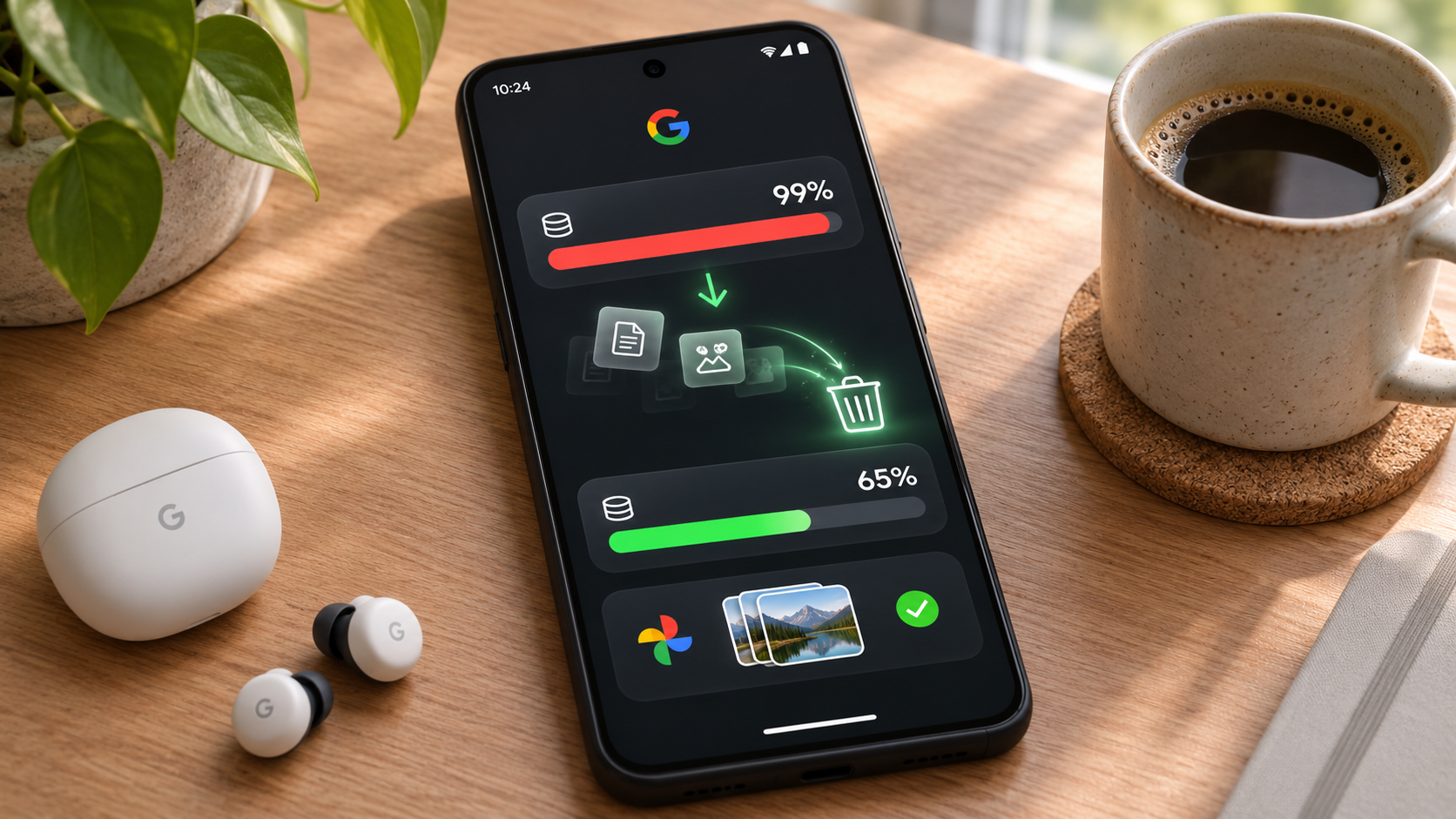
Last Year, I tried to film a 15-second video of my dog chasing a squirrel across the yard, and my Pixel 8 Pro wouldn’t even let me hit record. A gray pop-up told me my 128 GB phone was 99% full. My first reaction was to open my gallery and start sacrificing old vacation pictures, right up until I checked my storage menu and saw 34 GB of my drive clogged with silent app junk.
Before You Start
You don’t need any third-party cleaner apps for this. Just make sure you’re running Android 12 or newer (Samsung Galaxy menus are worded slightly differently than Pixel or Motorola, which I’ll mention as we go), sit somewhere with decent Wi-Fi, and give yourself about 15 minutes. Your main target is getting at least 10% to 15% of your drive open—roughly 13 GB to 20 GB on a 128 GB phone—so Android stops choking on basic app updates.
Dump Bloated App Caches (Without Losing Your Logins)
Every time you scroll through a feed or open a webpage, your apps save temporary thumbnails, video previews, and scripts so pages load quicker the next time. Leave them unchecked for six months and they quietly hoard gigabytes of garbage.
Open your phone’s Settings, tap Apps, and hit See all apps. Look up in the top corner for the little sort icon or three-dot menu and switch it to Sort by size. Check your top five hogs first. On my phone, Chrome alone was sitting on 4.2 GB, and Instagram had another 3.1 GB tucked away.
Tap into each app, go to Storage & cache, and hit Clear cache on the right side. Leave the button on the left alone. Doing that across five apps took me maybe thirty seconds, cleared over 7 GB, and didn’t log me out of anything.
Clean Out Forgotten APKs and Giant Files in Downloads
Every PDF restaurant menu, concert ticket, and random zip file you’ve ever tapped in Chrome sits inside your Downloads folder forever. Android never touches it unless you go in there yourself.
Open the Files by Google app (or My Files if you’re on a Samsung), tap Browse at the bottom, and open Downloads. Sort the folder by Largest first. You’ll almost certainly spot old screen recordings, duplicate PDFs, and leftover .apk installer files you forgot you ever downloaded. Select the stuff you don’t care about and hit the trash can. One annoying catch: Files moves everything into a holding bin first, so slide open the left menu, tap Trash, and empty it for real.
Stop WhatsApp and Telegram From Hoarding Group Chat Videos
If you’re stuck in active family or work group chats, your phone is quietly saving compressed memes, forwarded videos, and voice notes straight onto your drive in the background. Even if you never hit play, the file still sits there eating space.
In WhatsApp, tap the three dots up top and go to Settings > Storage and data > Manage storage. Look right at the Larger than 5 MB section—that’s usually where all the giant forwarded videos hide—and wipe out the ones you don’t want. While you’re still in Storage and data, tap Media auto-download and change both mobile data and Wi-Fi to No media, or just Photos if you still want pictures coming through.
Telegram is even worse out of the box. Head to Settings > Data and Storage > Storage Usage, drag the Maximum Cache Size slider down to 5 GB, and set auto-remove to 1 week. That single tweak knocked 6.8 GB off my phone immediately.
Let Google Photos Wipe Out Local Duplicates
If you already back up your camera roll to the cloud, your phone is basically keeping two copies of every picture and video: one on Google’s servers, and a full-resolution duplicate sitting on your internal drive. Google Photos has a built-in tool that deletes only the local copies that are already safely backed up.
Open Google Photos and tap your profile picture in the top right corner. Look directly under your email address and make sure it says Backup complete—seriously, don’t skip checking that line. Once you see it, tap Free up space on this device. It’ll tell you the exact gigabyte count it’s about to clear. Hit Free up to confirm. None of your photos disappear from the app; you can still scroll through your whole library whenever you’re online, just without the local storage headache.
Delete Old Offline Maps and Watched Netflix Downloads
Navigation and streaming apps love saving massive media packs for flights or road trips and never deleting them afterward. One downloaded season of a show in HD easily eats 4 GB to 7 GB.
In Google Maps, tap your profile icon, go to Offline maps, hit the three dots next to any region you aren’t driving through anytime soon, and tap Delete. Next, open the Downloads tab inside Netflix, YouTube, or Prime Video, dump whatever you’ve already watched, and turn off Smart Downloads so the app stops grabbing new episodes overnight. If you use Spotify, go to Settings > Storage inside the app and hit Clear cache—your playlists stay untouched, and it flushes out stale audio buffers.
Empty the Hidden Trash Bins Nobody Checks
Hitting delete on Android rarely gives you your storage back right away. Most gallery and file apps tuck deleted items into a 30-day safety net that still counts toward your storage limit.
Check three spots before you wrap up. Open Google Photos > Collections > Trash and tap Empty trash. If you use a Samsung Galaxy, open Samsung Gallery, tap the menu icon, go to Trash, and empty that too. Finally, check Files by Google > Trash one more time to make sure nothing is lingering.
What Goes Wrong in Real Life (And How to Fix It)
You deleted 10 GB of stuff, but Settings still says “Storage Full”
This happens constantly when Android’s media index gets stuck or a single rogue app is holding onto a private temp folder. Restart your phone first—a quick reboot forces Android to recalculate your free blocks. If the storage bar still refuses to budge, open Settings > Storage > Apps and look for one misbehaving app (Reddit and X are notorious for ballooning past 8 GB on their own) and clear its cache manually.
That “Storage space running out” icon won’t leave your status bar
Android triggers a stubborn system warning the second your free space drops below 10% of your total drive, even if you technically still have 4 GB left. Until you get back above that line, the Play Store will refuse to update apps and your camera shutter will lag. Keep clearing until you have 12 GB to 15 GB of breathing room so the warning finally disappears.
Mistakes I Made Early On (So You Don’t Have To)
A couple of years ago, I tapped Clear storage instead of Clear cache on my authenticator app and an offline game because I wasn’t paying attention. Clear storage (called Clear data on some phones) wipes your logins, local saves, and settings back to factory zero. Only ever tap Clear cache.
Also, skip all those “Phone Cleaner” booster apps on the Play Store with the little rocket icons. They’re total junk—they just blast you with full-screen ads and run background services that chew through your battery. Everything you actually need is already built into Android Settings and Files by Google. And if you use Telegram, cap that cache at 5 GB on day one instead of leaving it on unlimited.
Quick Questions People Actually Ask
Will clearing app cache delete my photos, texts, or passwords?
No. Cache is strictly temporary junk like webpage scripts and image thumbnails. Your saved photos, text threads, and app logins stay right where they are.
How much empty space does Android really need to run properly?
Try to leave at least 10% to 15% of your drive open. On a 128 GB phone, that means keeping 13 GB to 19 GB free so Android has room to unpack system updates and swap temporary files without stuttering.
Why is “System” taking up 25 GB on my phone?
That block holds the Android operating system itself, pre-installed manufacturer software, and storage formatting overhead. You can’t shrink it manually, which is why keeping a lid on app caches and offline downloads matters so much on 64 GB and 128 GB phones.
Should I go into the Android/data folder and delete folders myself?
Leave Android/data alone. Digging around in there with a third-party file manager can break app features or wipe offline game saves—just stick to the Clear cache button inside Settings.