
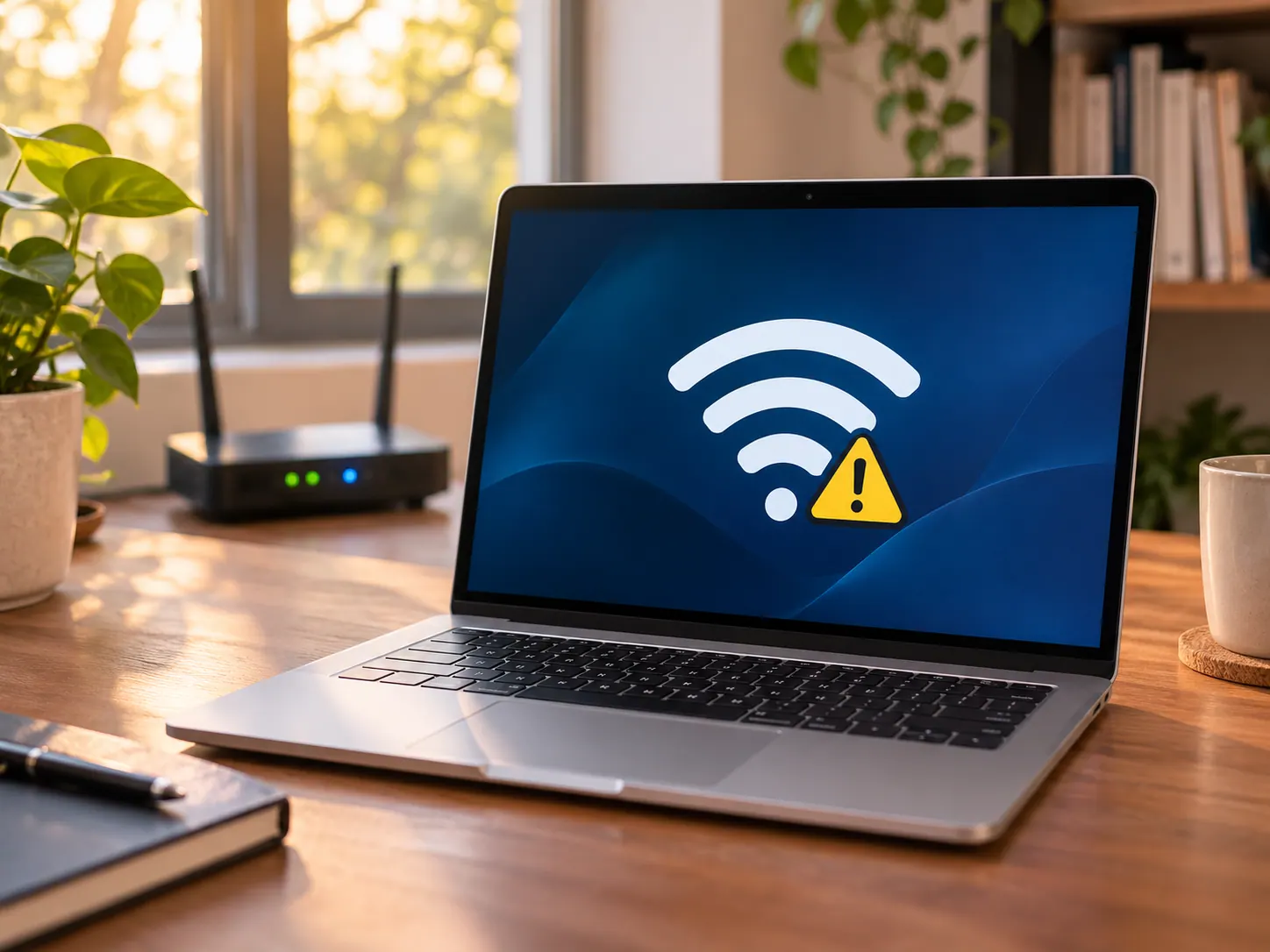
When your Wi-Fi connects to the router without internet access, the break lives between Windows 11 and your router—not your ISP’s outside line. Here are the six exact fixes I run in order, starting with a 30-second IP flush and ending with a clean network stack reset.
Last Tuesday morning, my Windows 11 laptop showed full Wi-Fi signal bars with the exact status “No internet, secured,” even though my Android phone was streaming 4K video on the exact same router two feet away. I wasted 15 minutes unplugging my fiber modem before realizing a stale DHCP lease inside Windows was blocking my laptop from reaching the gateway.
Quick Checklist Before You Touch Your Router
- A second device (like your phone) connected to the same Wi-Fi to confirm the router itself actually has internet
- Windows 11 Administrator access (needed to run ipconfig and netsh commands)
- 5 minutes to test IP renewal, DNS switching, and Wi-Fi driver resets
- Check your system tray for any active VPN, proxy, or third-party firewall blocking local LAN traffic
Fix 1: Release and Renew Your IP Address in Command Prompt
Routers hand out temporary local IP addresses (like 192.168.1.14) to every device. When your laptop wakes from sleep after a router reboot, two devices can end up claiming the same local IP, leaving Windows connected to Wi-Fi with zero data flow.
- Click the Start menu, type cmd, right-click Command Prompt, and select Run as administrator.
- Type the following command and press Enter to drop your broken local IP:
ipconfig /release - Wait 3 seconds, then type this command and press Enter to request a fresh IP from your router:
ipconfig /renew - Type ipconfig /flushdns and press Enter to clear stale domain lookups.
- Open your browser and reload a webpage—if an IP conflict caused the drop, pages load within two seconds.
Fix 2: Switch Your Wi-Fi DNS to Cloudflare (1.1.1.1) or Google (8.8.8.8)
Sometimes Windows 11 actually does have a working internet connection, yet every website fails to load because your ISP’s default DNS server stopped translating domain names into IP addresses.
- Press Win + I to open Settings, then click Network & internet > Wi-Fi.
- Click your connected Wi-Fi network name (or click Hardware properties).
- Next to DNS server assignment, click the Edit button.
- Change the dropdown from Automatic (DHCP) to Manual, and toggle IPv4 to On.
- Enter 1.1.1.1 under Preferred DNS and 8.8.8.8 under Alternate DNS, then click Save.
Fix 3: Turn Off Windows 11’s Wi-Fi Power-Saving Sleep Bug
Windows 11 aggressively cuts power to your laptop’s wireless card during brief idle moments to save battery. On Intel and Realtek Wi-Fi chips, waking back up often leaves the card half-asleep—showing full signal bars while dropping every outgoing packet.
- Right-click the Start button and select Device Manager.
- Expand the Network adapters arrow.
- Right-click your wireless adapter (look for names containing Wi-Fi, Wireless, Intel AX200/AX211, or Realtek 8852BE) and click Properties.
- Switch to the Power Management tab at the top.
- Uncheck Allow the computer to turn off this device to save power and click OK.
(Note: If your modern laptop uses Modern Standby and hides the Power Management tab, open Control Panel > Power Options > Change plan settings > Change advanced power settings, expand Wireless Adapter Settings > Power Saving Mode, and set both On battery and Plugged in to Maximum Performance.)
Fix 4: Toggle Airplane Mode and Disable Random Hardware Addresses
Some home routers and office access points block devices whose MAC address changes mid-session, or choke when Windows 11’s connectivity probe gets stuck.
- Click the Wi-Fi/Sound/Battery cluster in the bottom-right corner of your taskbar.
- Click Airplane mode to turn it On, wait a full 15 seconds, and click it again to turn it Off.
- If it reconnects with “No internet,” open Settings > Network & internet > Wi-Fi > [Your Network Name].
- Scroll down to Random hardware addresses and switch it from On or Change daily to Off.
- Disconnect and reconnect to your Wi-Fi network once so your router registers your hardware MAC cleanly.
Fix 5: Reset Windows 11’s Winsock and TCP/IP Stack
If a crashed VPN client, torrent app, or antivirus firewall corrupted Windows’ internal networking rules, manual IP renewals will not stick. Rebuilding the TCP/IP stack restores clean factory routing without deleting your saved Wi-Fi passwords.
- Open Command Prompt as administrator (Win + S, type cmd, right-click > Run as administrator).
- Run these three commands one by one, pressing Enter after each:
- netsh winsock reset
- netsh int ip reset
- ipconfig /flushdns
- Restart your PC completely (do not skip the reboot—Windows only rebuilds the socket catalog during a full restart).
Fix 6: Roll Back or Reinstall Your Wi-Fi Adapter Driver
Windows Update occasionally pushes a buggy wireless driver that connects to 2.4GHz or 5GHz bands fine on paper but fails to pass DHCP traffic.
- Open Device Manager (Win + X > Device Manager) and expand Network adapters.
- Right-click your Wi-Fi adapter and select Properties > Driver tab.
- If the Roll Back Driver button is clickable, click it to revert to the previous working version.
- If Roll Back Driver is grayed out, close Properties, right-click the Wi-Fi adapter again, and click Uninstall device—leave the “Attempt to remove the driver for this device” box UNCHECKED.
- Restart your laptop; Windows 11 automatically reinstalls a clean driver instance during boot.
What Goes Wrong in Real Life (And How to Fix It)
Scenario 1: You Disconnected a VPN Earlier, and Now Regular Wi-Fi Has No Internet
You closed NordVPN, ProtonVPN, or a work Cisco client earlier in the day, and now your Wi-Fi icon shows “No internet, secured” even though the VPN app is closed. Many VPNs enable a system-level Kill Switch that blocks all non-VPN traffic at the firewall level if the tunnel drops unexpectedly.
- The fix: Reopen your VPN app, connect for 5 seconds, and click Disconnect cleanly inside the app—or open the app’s settings and toggle Kill Switch / Network Lock off. If the VPN refuses to open, run netsh int ip reset in an administrator Command Prompt and reboot.
Scenario 2: Your Laptop Works on 2.4GHz Wi-Fi, But Says “No Internet” on 5GHz
Your dual-band router broadcasts both a standard network and a _5G network. Your laptop connects to the fast 5GHz band with 4 bars, yet websites time out—while switching to the 2.4GHz band works immediately.
- The fix: Thick walls or router channel congestion (especially high DFS channels above channel 149) often cause older laptop Wi-Fi cards to lose packet acknowledgments on 5GHz. Open Device Manager > Network adapters > [Your Wi-Fi Card] > Properties > Advanced, select Preferred Band (or Wireless Mode), and test switching between Prefer 5GHz band and Dual Band 802.11a/b/g, or log into your router (192.168.1.1) and lock 5GHz to Channel 36, 40, 44, or 48.
Common Mistakes I Made (And How to Avoid Them)
- Using Windows’ “Network reset” button too early: Pressing Network reset inside Windows Settings erases every saved Wi-Fi password, Bluetooth pairing, and custom VPN profile on your PC. Always run ipconfig /renew and netsh winsock reset first—they fix 90% of drops without wiping your saved networks.
- Forgetting to check if the router’s WAN light is red: Before running 10 Windows commands, glance at your phone on Wi-Fi. If your phone also shows “Connected without internet,” the issue is your fiber/cable modem or ISP outage—unplug the modem and router for 60 full seconds instead.
- Setting a manual static IP that clashes with your router’s DHCP pool: Manually typing 192.168.1.5 into Windows IPv4 settings works until your router assigns .5 to a smart TV or phone while your laptop is asleep. Always leave IP assignment on Automatic (DHCP) and only set DNS manually.
- Running two third-party antivirus firewalls at once: Installing McAfee or Norton alongside another security suite often blocks Windows’ outbound DHCP broadcast packets. Stick to built-in Windows Security unless you specifically need a third-party suite.
Frequently Asked Questions
Why does Windows 11 say “No internet, secured” when my phone works on the same Wi-Fi?
This means your laptop successfully authenticated with your Wi-Fi router’s password (secured), so the wireless link is healthy, but Windows failed to get a valid IP address, DNS response, or gateway route from the router. Running ipconfig /release followed by ipconfig /renew fixes this immediately in most cases.
Does “Connected, secured” vs. “No internet, secured” mean my Wi-Fi password is wrong?
No. If your Wi-Fi password were wrong, Windows would refuse to connect and show “Can’t connect to this network” or ask for the security key again. “No internet, secured” confirms your password worked and you are connected to the local router.
Will flushing DNS or resetting Winsock delete my saved Wi-Fi passwords?
No. Commands like ipconfig /flushdns, ipconfig /renew, netsh winsock reset, and netsh int ip reset only clear temporary network caches and reset routing sockets. Every saved Wi-Fi network and password stays intact.
How do I check if my router is actually reaching the internet from Command Prompt?
Open Command Prompt and type ping 1.1.1.1 and press Enter. If you get 4 replies (Reply from 1.1.1.1: bytes=32 time=14ms), your internet connection is 100% live and only your DNS settings are broken—switch your DNS to 1.1.1.1 and 8.8.8.8 using Fix 2 above.