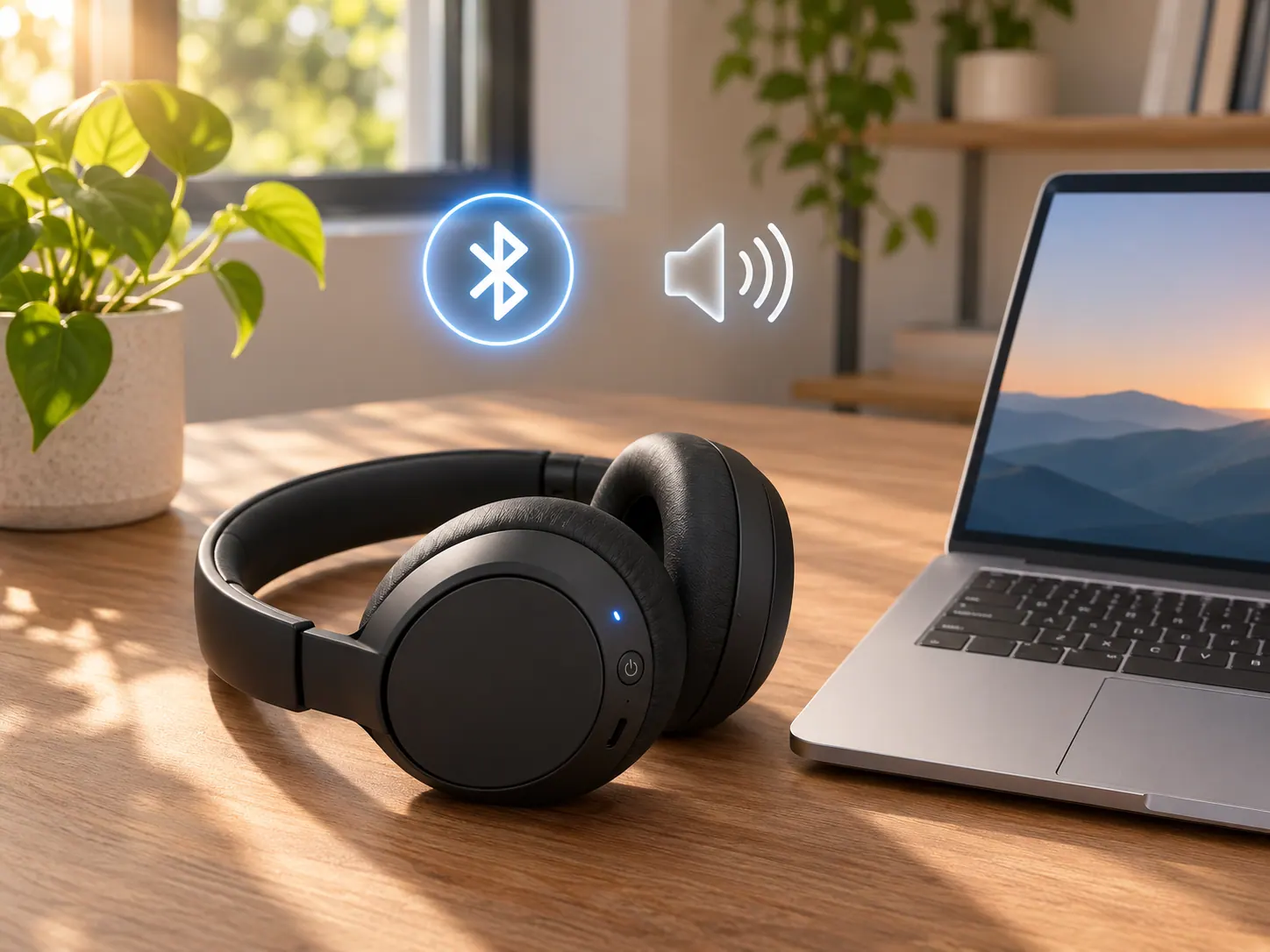
Last Wednesday morning, I joined a client Zoom call with my Sony WH-1000XM4 headphones paired to my Windows 11 laptop—and heard total silence even though the volume slider sat at 82%. After testing my audio output routing and Bluetooth profiles, I realized Windows had defaulted to a dead “Hands-Free Telephony” channel instead of the stereo audio driver.
When your headphones show Connected in Bluetooth settings without producing a single sound, the link itself is healthy—Windows is simply routing audio to the wrong endpoint or sleeping the audio service. Here is the exact five-step fix I use on Windows 11 and Windows 10 to restore full stereo audio in under three minutes.
Quick Checklist Before You Unpair Anything
- Your Bluetooth headphones or earbuds charged above 20% (low battery triggers power-saving audio dropouts)
- Bluetooth disconnected from your phone temporarily (multipoint earbuds often lock audio onto your phone silently)
- Windows 11 or Windows 10 Sound Settings and Control Panel Sound menu
- 3 minutes to switch the active output endpoint, restart the Windows Audio service, and disable Hands-Free Telephony
Step 1: Switch the Active Output Device in Quick Settings
Connecting a Bluetooth device does not always force Windows to switch its active speaker output away from your laptop’s internal Realtek speakers or external monitor HDMI audio.
- Click the Speaker/Wi-Fi cluster in the bottom-right corner of your taskbar (or press Win + A).
- Click the small right-pointing arrow (>) next to the horizontal volume slider.
- Look at the list of output devices: if you see two entries for your headphones—one labeled Headphones (Stereo) and another labeled Headset (Hands-Free AG Audio)—click Headphones (Stereo).
- Drag the volume slider to 50% and click the slider bar once; you should hear the crisp Windows chime immediately.
Step 2: Check Per-App Audio Routing in Volume Mixer
Sometimes YouTube plays through your headphones while Spotify, Chrome, or Discord stays completely mute. Windows remembers custom per-app output overrides long after you unplug an old monitor or USB headset.
- Right-click the Speaker icon in your taskbar and select Open volume mixer.
- Scroll down to the Apps section while your video or music tab is actively playing.
- Verify that your browser or media app is not muted (0%) and click the small down arrow next to the app name.
- Change both Output device and Input device from a specific old speaker back to Default (or explicitly select your Bluetooth headphones).
Step 3: Disable “Hands-Free Telephony” to Stop Silent Audio Conflicts
Bluetooth headphones register two separate profiles on Windows: high-quality stereo playback (A2DP) and low-bandwidth call audio (HFP). When a background app polls your microphone, Windows silently drops the stereo stream and switches to a dead Hands-Free channel.
- Press Win + R, type mmsys.cpl, and press Enter to open the classic Sound Control Panel.
- Under the Playback tab, right-click your Bluetooth headphones and click Properties (or switch to the Recording tab and disable the Bluetooth headset mic if you have a laptop or USB mic).
- To kill the broken Hands-Free service permanently, press Win + I, go to Bluetooth & devices > Devices, scroll down, and click More devices and printer settings.
- Right-click your headphones icon, select Properties > Services tab, uncheck Hands-free Telephony, and click OK.
- Turn your headphones off for 5 seconds and turn them back on—Windows will now lock exclusively onto clean stereo audio.
Step 4: Restart the Windows Audio and Bluetooth Support Services
If your volume slider moves but zero sound reaches any device, Windows’ background audio engine has stalled after a sleep/wake cycle. Restarting two services clears the lock in 15 seconds without rebooting your PC.
- Press Win + R, type services.msc, and press Enter.
- Scroll down, right-click Windows Audio, and select Restart.
- Right-click Windows Audio Endpoint Builder right below it and select Restart.
- Scroll up to Bluetooth Support Service, right-click it, and select Restart.
- Test your audio playback again—most frozen Bluetooth audio streams snap back immediately.
Step 5: Remove and Re-Pair the Headphones Cleanly
Corrupted pairing keys from a recent Windows Update or firmware update can leave your headphones connected for control buttons (pause/play) while blocking the audio stream.
- Open Settings > Bluetooth & devices > Devices.
- Click the three-dot menu next to your headphones and select Remove device > Yes.
- Turn Windows Bluetooth Off for 10 seconds, then turn it back On.
- Hold the physical pairing button on your headphones until the LED flashes rapidly in pairing mode (not slow standby blinking).
- Click Add device > Bluetooth in Windows and pair them fresh.
What Goes Wrong in Real Life (And How to Fix It)
Scenario 1: Sound Cuts Out the Exact Second You Join a Discord, Zoom, or Teams Call
Your music sounds crystal clear in Chrome, yet the instant you join a voice call, all system audio vanishes completely. Windows switched your headphones into Hands-Free call mode, and your call app’s speaker output is still pointed at the disabled stereo driver.
- The fix: Open Settings > Sound inside Zoom, Discord, or Teams and set the Microphone to your laptop’s built-in mic (or a USB desk mic) instead of your Bluetooth headphones. Once no app is accessing the Bluetooth mic, Windows keeps your headphones in high-definition stereo mode during the entire call.
Scenario 2: Multipoint Headphones Show “Connected” on Windows, But Play Audio From Your Phone
Modern earbuds and over-ear headphones (like Sony, Bose, Anker Soundcore, and Jabra) connect to two devices simultaneously. If your phone sits on your desk with Instagram, TikTok, or a muted video open in the background, the headphones hold onto your phone’s silent audio stream and ignore Windows.
- The fix: Swipe down on your phone’s quick settings panel and tap Bluetooth off for 5 seconds—or open your headphones’ companion app on your phone and switch the active audio source manually to your Windows PC.
Common Mistakes I Made (And How to Avoid Them)
- Using Windows’ automated “Audio Troubleshooter” first: The built-in troubleshooter frequently resets your sample rate or disables audio enhancements without fixing Hands-Free profile conflicts. Checking Quick Settings (Win + A) and mmsys.cpl takes 30 seconds and solves the real routing bug.
- Turning off “Audio Enhancements” blindly: Many guides tell you to disable Audio Enhancements in Sound Properties, which breaks spatial audio and EQ apps like Dolby Access or Realtek Audio Console. Only toggle that off as a last resort if audio sounds distorted or crackly.
- Leaving an old HDMI monitor or USB-C dock plugged in without checking output: Every time you plug in a USB-C hub or external monitor, Windows assumes the new screen’s non-existent speakers should become your default audio output. Check your taskbar speaker arrow first whenever audio disappears.
- Re-pairing headphones while they are still connected to a nearby tablet: If your headphones auto-connect to an iPad in another room during pairing, Windows pairs in “Voice only” or “Connected” mode without audio. Turn off Bluetooth on nearby devices during the 15-second pairing step.
Frequently Asked Questions
Why does Bluetooth say “Connected” instead of “Connected voice, music” in Windows?
When Windows displays only “Connected” without “music” or “voice” underneath the device name, the control link succeeded, but the A2DP audio driver failed to initialize. Turn the headphones off for 10 seconds and back on, or restart Windows Audio in services.msc.
How do I stop Bluetooth audio from lagging or stuttering on Windows 11?
Move your USB wireless mouse dongle away from USB 3.0 ports (which emit 2.4GHz interference right next to Bluetooth frequencies), and turn off Allow the computer to turn off this device to save power under Device Manager > Bluetooth > [Your Bluetooth Radio] > Power Management.
Why do my Bluetooth headphones sound muffled like an old telephone on Windows?
Your headphones are stuck in Hands-Free (HFP) mono call mode because an app in the background—such as Discord, Steam Voice, or a browser tab with mic permissions—is keeping the microphone active. Switch your Windows default input microphone to your laptop’s internal mic to restore crisp stereo sound.
Can a Windows 11 update break Bluetooth headphone sound?
Yes, cumulative updates occasionally overwrite Intel or Realtek Bluetooth drivers with a generic Microsoft driver. Open Device Manager > Bluetooth, right-click your main adapter (like Intel Wireless Bluetooth), click Properties > Driver, and click Roll Back Driver if audio stopped right after an update.