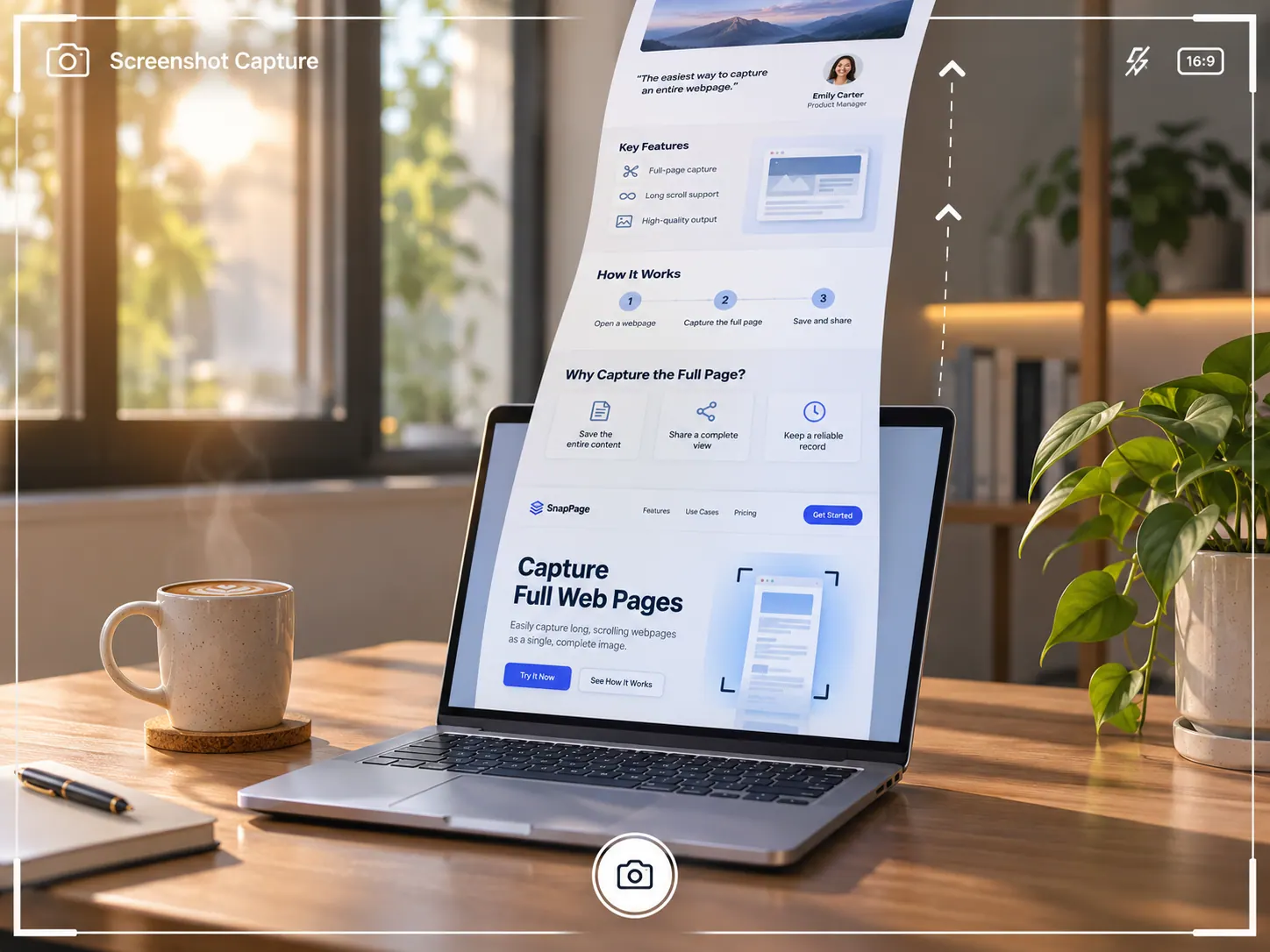
You do not need to install bloated browser extensions or pay for screen-capture software just to save a long webpage or chat thread. Here are the exact built-in shortcuts I use on Windows 11 and macOS to capture crisp, full-length scrolling screenshots in under 10 seconds.
Last month, I spent 15 minutes stitching together seven overlapping screenshots of a long invoice page just to send one clean receipt to my accountant. Halfway through aligning the rows in Paint, I realized both Chrome and Edge on Windows—plus Safari on Mac—already have a hidden full-page capture tool built right into the browser.
Quick Checklist Before You Capture
- On Windows 11 / 10: Microsoft Edge (Ctrl + Shift + S) or Google Chrome (F12 DevTools Command Menu)
- On macOS: Safari (with the built-in Develop menu enabled) or Google Chrome (Cmd + Option + I)
- 5 seconds to scroll down the page once first so lazy-loaded images finish rendering before you snap the file
Method 1: Microsoft Edge Web Capture (Fastest on Windows)
Microsoft Edge includes the easiest native scrolling screenshot tool on Windows—no developer menus or keyboard gymnastics required.
- Open the webpage you want to capture inside Microsoft Edge.
- Press Ctrl + Shift + S on your keyboard (or click the three-dot menu in the top-right corner and select Screenshot).
- Click Capture full page in the small toolbar that pops up at the top of the screen.
- A preview window opens immediately showing the entire page from header to footer—click the Save icon (floppy disk) in the top-right corner to download a crisp .jpeg file straight to your Downloads folder.
Method 2: Google Chrome Built-In Full-Size Capture (Windows & Mac)
Google Chrome hides a lossless PNG scrolling screenshot command inside its built-in Developer Tools. Once you learn the two-shortcut combo, it takes less than five seconds on both Windows and Mac.
- Open your target page in Google Chrome and scroll quickly to the bottom and back up so all images load.
- Open DevTools by pressing Ctrl + Shift + I (Windows) or Cmd + Option + I (Mac)—you can also press F12 on Windows.
- With the DevTools panel open, press Ctrl + Shift + P (Windows) or Cmd + Shift + P (Mac) to launch the Run command search bar.
- Type full size into the box until Capture full size screenshot highlights in blue, then press Enter.
- Chrome immediately saves a full-resolution .png image of the entire webpage directly to your Downloads folder.
Method 3: Safari Full-Page PDF Export on Mac (Zero Extensions)
macOS’s standard screenshot bar (Cmd + Shift + 5) only captures your visible screen or a single window, not scrolling pages. However, Apple’s built-in Safari browser lets you export any scrolling webpage as a continuous, searchable document or image in three clicks.
Option A: Export as a Continuous Single-Page PDF
- Open the page in Safari on your Mac.
- Click File in the top-left macOS menu bar and choose Export as PDF….
- Give the file a name and click Save—Safari saves the entire scrolling webpage without awkward page breaks, and all text stays selectable.
Option B: Save as a High-Resolution PNG via Safari Web Inspector
- Open Safari > Settings (or press Cmd + ,), click the Advanced tab at the far right, and check Show features for web developers at the bottom.
- Right-click anywhere on the webpage and select Inspect Element.
- In the Elements panel that opens, right-click the very top <html …> tag line.
- Select Capture Screenshot—macOS immediately prompts you to save a full-length .png image of the entire scrolling page.
Method 4: Windows 11 Snipping Tool Video-to-Frame Workaround (For Desktop Apps)
Chrome, Edge, and Safari capture any webpage effortlessly, but what if you need to capture a scrolling list inside a desktop app—like a long folder in File Explorer or a Slack thread—where browser shortcuts do not work?
- Open the desktop window you want to capture and press Win + Shift + S to open the Windows 11 Snipping Tool overlay.
- Click the Video camera icon at the top center to switch from photo snip to screen recording, drag a rectangle around the app window, and click Start.
- Slowly scroll down through the content for 3 to 5 seconds, then click the red Stop button.
- Use the Snipping Tool preview scrubber to pause on each clean section—or paste the 2–3 frames side-by-side—without installing third-party capture utilities.
What Goes Wrong in Real Life (And How to Fix It)
Scenario 1: The Bottom Half of Your Scrolling Screenshot Shows Blank Gray Boxes
You hit Capture full size screenshot in Chrome, open the saved PNG file, and see sharp text at the top followed by empty white or gray rectangles where photos and charts should be. Modern websites use “lazy loading” to delay downloading images until your screen scrolls past them.
- The fix: Before pressing Ctrl + Shift + P, press the End key (or Cmd + Down Arrow on Mac) to jump straight to the bottom of the webpage, wait 2 full seconds for every image and comment box to finish loading, and then trigger the capture.
Scenario 2: A Sticky Top Header or Floating Chat Bubble Repeats Over the Text
On some news sites and web apps, a floating cookie banner, navigation bar, or customer-support chat widget gets frozen in the middle of your scrolling screenshot, covering two lines of important text.
- The fix: In Chrome or Edge, press F12 to open DevTools, click the Select an element icon (the little square with a mouse pointer in the top-left corner of DevTools), click the annoying floating banner on the page, and press the Delete key on your keyboard. That temporarily removes the floating box from your screen so your scrolling screenshot comes out clean.
Common Mistakes I Made (And How to Avoid Them)
- Capturing a webpage zoomed to 125% or 150%: If your browser zoom is cranked up, Chrome generates a massive 12,000-pixel-tall image with blurry, blown-up UI elements. Press Ctrl + 0 (Windows) or Cmd + 0 (Mac) to reset zoom to 100% before taking your screenshot.
- Installing free “Full Page Screenshot” extensions with broad permissions: Many popular screenshot extensions request permission to “Read and change all your data on all websites” and have been caught injecting affiliate links or tracking scripts later. Built-in Chrome DevTools and Edge Web Capture give you cleaner PNG/JPEG files with zero privacy risk.
- Sending huge 8 MB PNG files over email or WhatsApp: Chrome’s DevTools screenshot saves an uncompressed PNG that can easily hit 6 MB to 10 MB on long pages. If you are emailing a receipt or attaching a bug report, use Microsoft Edge’s Capture full page (which saves a compact .jpeg under 1 MB) or convert the PNG to JPEG in Windows Photos / macOS Preview.
- Trying to capture inside an internal scrollable box: Browser full-page tools scroll the main outer webpage window—not a tiny inner scrollbar inside a PDF viewer or embedded spreadsheet. If the content lives inside an inner frame, right-click inside that box and choose Open frame in new tab first, then capture it.
Frequently Asked Questions
How do I take a scrolling screenshot on Windows 11 using only the keyboard?
If you are inside Microsoft Edge, press Ctrl + Shift + S and click Capture full page. If you are inside Google Chrome, press Ctrl + Shift + I, then press Ctrl + Shift + P, type full size, and press Enter.
Does Windows 11 Snipping Tool have a built-in scrolling screenshot button yet?
Standard Windows 11 Snipping Tool (Win + Shift + S) supports Rectangle, Window, Fullscreen, and Freeform snips, plus screen video recording, but it still lacks a native auto-scrolling capture button for desktop windows. Using Edge’s Web Capture or Chrome’s DevTools capture is the fastest native solution on Windows 11.
Where do Chrome and Edge save full-page scrolling screenshots?
Google Chrome automatically saves full-size PNG screenshots straight into your default Downloads folder without asking. Microsoft Edge opens a preview window first where you can draw or highlight on the image before clicking Save to send it to your Downloads folder.
Can I capture a scrolling screenshot on iPhone or Android without an app?
Yes. On iPhone, take a normal screenshot (Side Button + Volume Up) while inside Safari, tap the preview thumbnail in the bottom-left corner, and tap the Full Page tab at the top to save a scrolling PDF. On Android (Samsung, Pixel, OnePlus), press Power + Volume Down and tap Capture more (or Scroll capture) at the bottom of the screen.