Last Thursday morning, my UPI banking app, Gmail, and Swiggy all flashed open for half a second and slammed shut back to the home screen every time I tapped them. I wasted 10 minutes toggling airplane mode before realizing a broken Android System WebView update was crashing every app that renders web content inside its interface.
When an Android app closes the instant you launch it, the culprit is almost always a corrupted cache file, a stalled WebView component, or low free storage—not a broken phone. Here is the exact five-step repair sequence I use on Android phones to stop instant app crashes without losing your logins or local chats.
Quick Checklist Before You Clear Anything
- Your Android phone (Samsung Galaxy, Google Pixel, OnePlus, Motorola, Xiaomi/Redmi, or Vivo)
- At least 5 GB of free internal storage (check Settings > Storage; apps crash instantly when flash storage hits 98%+ full)
- Google Play Store open to check for pending Android System WebView and Chrome patches
- 5 minutes to test cache clearing before touching Clear storage (so you keep your saved logins intact)
Step 1: Force Stop and Clear Cache (Without Deleting Your Logins)
Every Android app stores temporary images, layout scripts, and session tokens in its local cache. When an app update changes its code layout, leftover cache files from the older version often trigger an instant crash at launch.
- Press and hold the crashing app’s icon on your home screen or app drawer and tap the small (i) App info button.
- Tap Force stop in the bottom corner and confirm OK so any hung background thread closes cleanly.
- Tap Storage & cache (on Samsung Galaxy, tap Storage).
- Tap Clear cache—do NOT tap “Clear storage” or “Clear data” yet, because clearing cache keeps your account logged in while wiping corrupted temp files.
- Reopen the app and test it for 10 seconds.
Step 2: Update (or Roll Back) Android System WebView and Chrome
If three or four completely unrelated apps—such as banking apps, Amazon, news readers, and Gmail—all start crashing on the exact same day, Android System WebView is almost certainly the culprit. WebView is the built-in mini-browser engine that dozens of apps rely on to display screens.
- Open the Google Play Store and tap your profile icon in the top-right corner.
- Tap Manage apps & device > Updates available.
- Look for Android System WebView and Google Chrome—if either shows an Update button, tap Update immediately and wait 60 seconds for installation to finish.
- If no update is available (or crashes started right after an update): Open Settings > Apps > See all apps, tap the three-dot menu > Show system, search for Android System WebView, tap the three-dot menu at the top right, and select Uninstall updates.
- Restart your phone once and open your crashing apps—they will load normally again.
Step 3: Free Up At Least 10% of Your Internal Storage
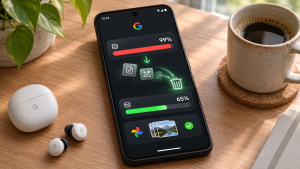
Android needs free flash storage blocks to unpack temporary databases when an app launches. Once a 64GB or 128GB phone drops below 1.5 GB to 2 GB of free space, heavy apps like Instagram, WhatsApp, and camera editors crash immediately upon opening.
- Open Settings > Storage (on Samsung, go to Settings > Device care > Storage).
- Check your available gigabytes at the top—if free space sits under 3 GB, clear out Trash / Recently Deleted inside Google Photos and Files by Google first.
- Delete large downloaded .mp4 videos from WhatsApp or Telegram folders until you have at least 5 GB to 8 GB of breathing room.
- Restart your phone so Android reclaims the freed blocks, then launch the crashing app.
Step 4: Check App Permissions and Battery Restrictions
Sometimes an app crashes right after an Android OS upgrade because a critical permission (like Storage, Contacts, or Nearby Devices) got revoked automatically, or aggressive battery optimization killed its startup handshake.
- Open the app’s App info screen (long-press the app icon > (i)).
- Tap Permissions and make sure any core permission the app actually needs—such as Camera for a scanner app or Location for a delivery app—is not stuck on Ask every time with a broken prompt.
- Go back one screen to App info, tap App battery usage (or Battery), and switch it from Restricted back to Optimized.
Step 5: Reinstall the App Cleanly (The Last Resort for a Single Stubborn App)
If only one single app keeps crashing while every other app on your phone runs smoothly, its local SQLite database or APK binary is damaged beyond what Clear cache can repair.
- Before deleting anything, verify you know your username and password (or back up chats inside WhatsApp > Settings > Chats > Chat backup).
- Open App info > Storage & cache and tap Clear storage / Clear data—this resets the app to a fresh first-launch state.
- If it still crashes, tap Uninstall, reboot your phone once to clear leftover system references, and reinstall a fresh copy directly from the Google Play Store.
What Goes Wrong in Real Life (And How to Fix It)
Scenario 1: Banking, UPI, or Work Apps Crash Immediately After an Android Update
You install a monthly Android security patch, and suddenly your banking app, Google Pay/PhonePe, or company Slack/Teams refuses to open—flashing a white screen and closing in half a second. Financial and enterprise apps run strict root-detection and Play Integrity checks at startup that fail if Google Play Services falls out of sync with the new OS build.
- The fix: Open Google Play Store > Profile icon > Settings > About, scroll to the bottom, and tap Update Play Store. Next, open Settings > Apps > Google Play Services > Storage & cache > Clear cache, and check Play Store > Manage apps & device to install the latest app update for that specific banking app.
Scenario 2: Your Phone Freezes for 5 Seconds Before Every App Crashes
When you tap an app icon, the screen locks up briefly, the back of the phone feels slightly warm, and the app closes without an error message. Another runaway app or stuck media download in the background is hogging all available RAM, forcing Android’s Low Memory Killer to terminate whatever app you just opened.
- The fix: Press and hold the Power button (or Power + Volume Up on newer Samsung and Pixel phones) and tap Restart. A clean reboot flushes leaked background RAM and kills stuck foreground services in 30 seconds.
Common Mistakes I Made (And How to Avoid Them)
- Tapping “Clear storage” before trying “Clear cache”: Clearing storage wipes all local settings, offline downloads, and saved logins, forcing you through two-factor SMS verification all over again. Always test Force stop + Clear cache first—it fixes 70% of crashes without logging you out.
- Sideloading beta APK files over Play Store versions: Installing a leaked beta .apk file from a browser site on top of an official Play Store app frequently creates signature or database version mismatches that crash immediately on launch. Stick to official Play Store releases unless you uninstall the old version first.
- Never restarting an Android phone for weeks: Leaving an Android phone running continuously for 20+ days allows system UI memory leaks and stuck WebView threads to pile up. Restart your phone at least once a week to keep app launches snappy.
- Using third-party “App Booster” or “RAM Cleaner” tools: Aggressive task-killer apps repeatedly murder background services that Android apps depend on to launch cleanly, causing more crashes rather than fewer.
Frequently Asked Questions
Why do multiple Android apps suddenly start crashing at the exact same time?
When several unrelated apps crash together on the same day, the cause is almost always a buggy update to Android System WebView or Google Chrome, which provide the shared web-rendering engine used inside dozens of Android apps. Updating or uninstalling updates for Android System WebView fixes all of them at once.
Will clearing an app’s cache delete my photos, chats, or account login?
No. Tapping Clear cache only removes temporary preview thumbnails and layout scripts. Your account login, saved passwords, messages, and downloaded files remain completely untouched—only Clear storage / Clear data resets your login.
How do I check if a crashed app has a known bug on the Play Store?
Open the app’s listing in the Google Play Store, tap Ratings and reviews, and sort reviews by Most recent (and filter by your device model). If dozens of users posted 1-star reviews in the last few hours saying “crashes after today’s update,” the developer pushed a broken build—wait 24 hours for their hotfix update instead of wiping your phone.
Does resetting app preferences fix stubborn crashes without deleting personal files?
Yes. If system permissions or disabled background services are causing widespread crashes, go to Settings > System > Reset options > Reset app preferences (on Samsung, Settings > Apps > Three-dot menu > Reset app preferences). It restores default permissions and background restrictions for all apps without deleting any photos, messages, or app data.