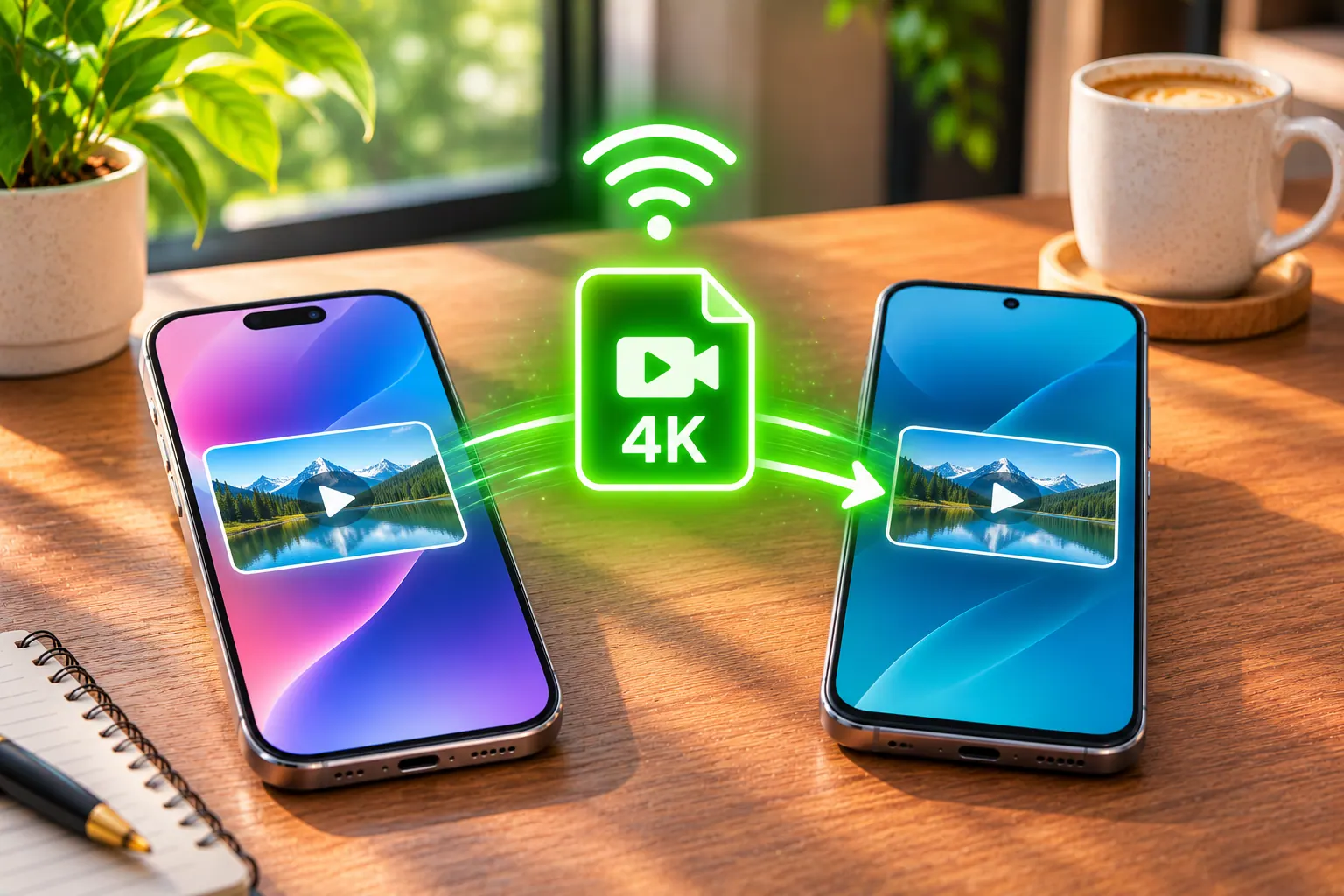
After testing five cross-platform transfer methods with a 1.8 GB, 3-minute 4K .MOV file, I found three completely free ways to send full-resolution videos from iPhone to Android without a single pixel of quality loss. Here is the exact step-by-step breakdown for both in-person transfers and sending files over the internet.
Last month, I recorded a crisp 4K 60fps family clip on my iPhone and sent it to my brother’s Android phone over regular WhatsApp—only to watch it arrive as a blurry, pixelated 480p square. Standard messaging apps aggressively compress large video files to save server bandwidth, throwing away 90% of the detail.
Quick Checklist Before You Send Anything
- Your iPhone (iOS 16 or newer) and the recipient’s Android phone (Android 10 or newer)
- Exact file size check: Open the Photos app on your iPhone, swipe up on the video, and check the exact size (for example, 1.4 GB • 3840 × 2160)
- Choose your transfer mode: Use LocalSend (free Wi-Fi direct) if both phones are in the same room, or WhatsApp “Send as Document” / Google Drive Link if you are miles apart
Method 1: LocalSend Over Wi-Fi (Fastest In-Person Method — Zero Internet Needed)
AirDrop only works between Apple devices, and Android’s native Quick Share still does not pair directly with an iPhone without third-party bridges. LocalSend is a free, open-source app that acts like cross-platform AirDrop over your local Wi-Fi router or personal hotspot—transferring a 1 GB video in about 35 seconds with zero compression.
- Install the free LocalSend app from the App Store on your iPhone and the Google Play Store on the Android phone.
- Connect both phones to the same Wi-Fi network (if you are outdoors with no router, turn on Personal Hotspot on your iPhone and connect the Android phone to it).
- Open LocalSend on both phones—each phone immediately appears on the other’s Nearby Devices radar with a random two-word nickname.
- On your iPhone, tap Send > Media, select your 4K video(s), and tap the Android phone’s name.
- On the Android phone, tap Accept—the original .MOV or .MP4 file lands straight inside the Android Downloads or Movies folder at 100% original bitrate.
Method 2: WhatsApp “Send as Document” (Best When You Are Far Apart — Up to 2 GB)
If you tap the standard Gallery / Photo & Video icon inside WhatsApp, WhatsApp compresses even “HD” videos down to 720p or heavily compressed 1080p. Sending the exact same video as a Document forces WhatsApp to bypass its video encoder completely and deliver the untouched raw file up to 2 GB.
- Open the Photos app on your iPhone, tap Select, choose your video(s), tap the Share icon (square with upward arrow), and tap Save to Files.
- Save the video into your On My iPhone or iCloud Drive folder (takes 2 seconds).
- Open WhatsApp, open your chat with the Android user, tap the + (Plus) icon in the bottom-left corner, and choose Document > Choose File.
- Tap the video file you just saved and hit Send.
- The recipient receives the exact original .MOV file—with full 4K resolution, 60fps smoothness, and original audio intact.
Method 3: Google Photos or Google Drive Link (Best for 3 GB+ Videos & Group Sharing)
When your video exceeds WhatsApp’s 2 GB limit—or you want to share five large clips with a whole family group at once—uploading to Google Drive or Google Photos (Original Quality) keeps the master file safe in the cloud.
- Open the Google Drive app on your iPhone (every Google account includes 15 GB of free cloud storage).
- Tap the colorful + (New) button in the bottom-right corner, tap Upload > Photos and Videos, and select your video.
- Wait for the upload bar to finish (keep the Google Drive app open on screen so iOS does not pause background uploads).
- Tap the three-dot menu next to the uploaded file, tap Manage access, change Restricted to Anyone with the link, and tap Copy link.
- Paste the link into WhatsApp, SMS, or email—the Android user taps the link and hits the Download arrow to save the full-resolution file.
What Goes Wrong in Real Life (And How to Fix It)
Scenario 1: The Android Phone Plays Audio From Your iPhone Video, But the Screen Stays Black
You sent a gorgeous 4K 60fps iPhone video cleanly as a Document, yet when your friend opens it on an older budget Android phone, they hear crystal-clear audio over a black or stuttering video screen. Modern iPhones record 4K video in HEVC (H.265) 10-bit HDR by default, which older Android hardware decoders struggle to play smoothly.
- The fix: On the Android phone, install the free VLC for Android app from the Google Play Store and open the downloaded video inside VLC—its software decoder plays 10-bit iPhone HEVC footage smoothly. To prevent this in the future, open Settings > Camera > Formats on your iPhone and switch from High Efficiency to Most Compatible (which records universally compatible H.264 .MP4 files), or toggle HDR Video off under Settings > Camera > Record Video.
Scenario 2: LocalSend Cannot See the Android Phone on Public or Office Wi-Fi
Both phones are connected to the exact same café, hotel, or office Wi-Fi network, yet LocalSend’s radar stays completely blank on both screens. Public and corporate routers enable AP (Client) Isolation, a security rule that blocks two devices on the same Wi-Fi from talking directly to each other.
- The fix: Turn off Wi-Fi on the Android phone, turn on Personal Hotspot on your iPhone (Settings > Personal Hotspot > Allow Others to Join), and connect the Android phone directly to your iPhone’s hotspot. Open LocalSend again—both devices appear within two seconds and transfer at full local Wi-Fi speed without using your cellular data plan.
Common Mistakes I Made (And How to Avoid Them)
- Using WhatsApp’s “HD” toggle expecting true original quality: Tapping the small HD button at the top of WhatsApp’s normal photo picker still downscales 4K video to 1080p and strips roughly 70% of the bitrate. Always use Document > Choose File when you want untouched 4K footage.
- Locking the iPhone screen mid-upload during large cloud transfers: iOS aggressively suspends third-party apps (including Google Drive, Telegram, and LocalSend) roughly 30 seconds after you lock the screen. Keep your screen awake while sending multi-gigabyte videos.
- Sending raw 4K ProRes files to someone with limited phone storage: Recording in Apple ProRes eats 6 GB per minute of video—a 3-minute clip will fill up a friend’s Android storage immediately. Check the file size in Photos first before sending massive raw clips.
- Paying for shady “AirDrop for Android” clone apps on the App Store: The App Store is full of subscription apps charging $8/week to transfer files over Wi-Fi while slapping watermarks on free transfers. LocalSend is 100% free, ad-free, open-source, and requires zero account sign-up.
Frequently Asked Questions
Does Telegram send large iPhone videos to Android without losing quality?
Yes—if you send the video as a File rather than standard media. In Telegram, tap the paperclip icon > File (instead of Photo or Video) and choose your clip from the iPhone Files app; Telegram supports uncompressed file transfers up to 2 GB on free accounts (and 4 GB on Premium).
Why does sending a video via standard SMS/MMS text message look terrible?
Traditional carrier MMS caps file sizes at 1 MB to 3.5 MB, forcing your iPhone to crush a 500 MB video down into a tiny, blurry postage-stamp clip before sending. Even with newer RCS messaging enabled on iOS 18+, carrier limits still cap files around 100 MB—always use LocalSend, WhatsApp Document, or Google Drive for large videos.
Does LocalSend use my mobile internet data when transferring videos?
No. LocalSend transfers files directly between your iPhone and Android phone over your local Wi-Fi router or personal hotspot peer-to-peer connection. Even if your home internet fiber line goes completely offline, LocalSend still transfers 4K videos at full speed.
How fast can I transfer a 2 GB video from iPhone to Android?
Over a 5GHz Wi-Fi router or iPhone Personal Hotspot using LocalSend, a 2 GB video transfers in roughly 45 to 70 seconds (averaging 25–40 MB/s). Over cloud links like Google Drive, speed depends entirely on your internet upload bandwidth.